
Featured Products
-
Sale!

-
Sale!

-
Sale!

-
Sale!

-
Sale!

-
Sale!

-
Sale!

-
Sale!


MCP Actions Website | MCP Flickr Group | MCP Reviews

This post is written exclusively for the MCP Actions Blog by “Color Inc Pro Lab.” They are an amazing printer with excellent customer service. And they have agreed to do monthly tips and/or contests here on the MCP Blog. I get so many questions on proofing and how to get colors in print as close to what they look like on your monitor. Every printer will have different calibration and ICC profiles, so check with your printer for best results. But here is an excellent explanation of soft proofing in photoshop.
____________________________________________________________________________
Color matching between monitors and prints can be a tricky hassle to set up. Computer monitors can display extremely high ranges of contrast and brightness. This is great for viewing images, as they look crisp, bright and colorful. Unfortunately, paper is not as forgiving. Typical photo paper does not have the contrast a monitor can produce. Additionally, it is not back lit like most monitors are, which means images will typically print darker than they display.
This is where Soft Proofing comes in. Soft Proofing is a term for adjusting your computer and display so that it mimics some other device (such as a printer). Imaging software such as Adobe Photoshop can Soft Proof images using ICC Profiles. These profiles tell Photoshop how certain colors will print, and Photoshop can use the profiles to ‘guess’ what an image will look like when printed, even if you are looking at the image on your monitor.
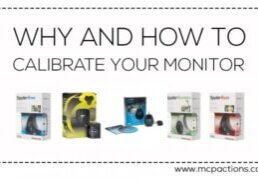
Soft proofing heavily relies on the accuracy of your monitor profile and printer profile. (In this case, your monitor profile should be coming from a monitor colorimeter (such as an eye-one display 2). Running the enclosed software will help you generate a profile for your specific monitor. The printer profile should be the profile that your lab recommends you use.
At ColorInc, our professional Fuji printers print a color range very close to sRGB, and we recommend you use this profile for your images. We also regularly calibrate each monitor using the eye-one display colorimeter (the same models we sell on our website).
Typically, specialty proof setup is not required. (The great thing about using sRGB is that it is relatively standard. Almost all monitors, televisions, and some printers use it already). However, if you would like to, you can set up proof conditions in image editing software such as Adobe Photoshop. To do this in Photoshop CS3, click “View” → “Proof Setup → “Custom”. Under “Device to Simulate” select “sRGB IEC61966-2.1” and select ok. Then click “View” → “Proof Colors” to enable and disable the soft proofing display.
Remember to check all color settings with actual prints. It can be frustrating to work on a batch of photos that turn out different when printed. Test prints can alert you of color mismatches early, and can alleviate problems before they occur. Especially when you can get express prints for only 17c, these prints cost pennies, and can save you hundreds in the long run.
Using soft proofing techniques can save you time and frustration when editing images, and with a bit of luck, you photos will look stunning!
Ready to experience excellence? Become a ColorInc customer, and get 50% off your first order! Just sign up online at
Include the code MCP0808 with your first ROES
order in the Special Instructions field to get 50% off!

No Comments
Leave a Comment
You must be logged in to post a comment.















Recent Posts









Just sent my first order. Thank you so much for the discount.I had to get my son’s three year old photos.Can’t wait to receive them.Thanks again!
Oh my gosh! I was just dealing with this issue yesterday when my lab called to say my picture colors were a bit too dark. My monitor colors are good, but the difference between monitor and paper makes it difficult to get your photos looking just right. Thanks for the clue about Photoshop proofing and the discount. I way love my current lab, but it’s good to know there’s an good alternative.
Great information! I had planned on placing my first order with color inc when I found this post, but I tried the coupon code and it didn’t work. Is this a limited time offer? Thanks!
Hi Becky!This is Abby from Color Inc! You will not see the 50% off discount when you place your order, but when you receive an e-mail with your actual invoice attached. If you didn’t see the half off applied to your total, please let us know and we will take care of that for you right away!