
Featured Products
-
Sale!

-
Sale!

-
Sale!

-
Sale!

-
Sale!

-
Sale!

-
Sale!

-
Sale!


MCP Actions Website | MCP Flickr Group | MCP Reviews
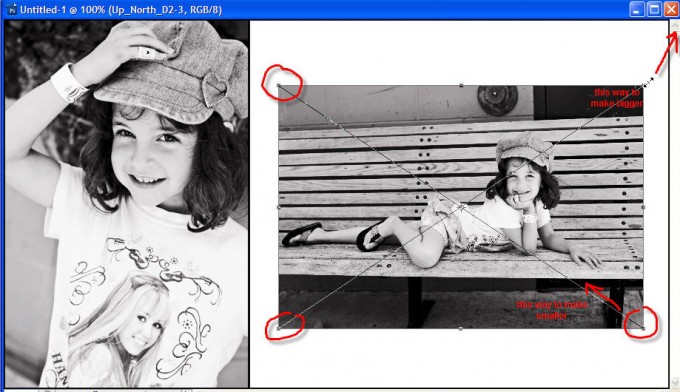
There are many times when you need to transform the size of your photo, especially when inserting photos into collages, storyboards and templates in Photoshop. The shortcut key for this is CTRL + the “T” key on a PC, and Command + the “T” Key on a Mac.
The transform tool can also be used for things like stretching the canvas (which I covered in a past blog post), making people thinner and scupting them, and manipulating perspective.
But when using it for collages, storyboards, templates and the Magich Blog It Boards, you usually want to maintain the proportions, and increase or decrease size without losing your aspect ratio. To do this, when you drag one of the 4 corners, hold down the shift key. That works great!
Another less knowns way is to hold down ALT and SHIFT (PC) or OPTION and SHIFT (Mac) while dragging. Instead of pulling down it will increase or decrease from the center instead. Try this so you can see what I mean. Basically your photo will not move its center spot.

No Comments
Leave a Comment
You must be logged in to post a comment.

















Recent Posts









I know this probably seems like a dumb question, but is there a button for the transfoorm tool? I can’t find one and when I press ctrl + T nothing happems. I would love to practice with this toll, but I cant find it. thanks!
If you go under EDIT – TRANSFORM.
I’m just starting to work with templates and was so frustrated with this! It’s like a little miracle, thank you! 🙂
I love that option-shift transform tip. Works like a charm. Thanks!
thank you for this quick and easy lesson on the transform tool. I have recently started the struggle with photoshop 7 and find the Help in photoshop is not easy to follow. these steps were perfect