
Featured Products
-
Sale!

-
Sale!

-
Sale!

-
Sale!

-
Sale!

-
Sale!

-
Sale!

-
Sale!


This is a very basic tutorial on how to use clipping masks to insert photos into a template or card.
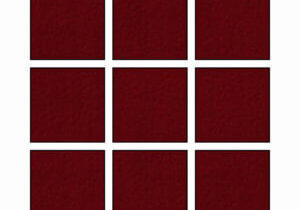
To start with, open your template. For this example, I am using a very simple white template. Openings shown in black. The black represents the layer(s) in your templates that you need to clip to. Depending on the designer they may be labeled “Photo Layer,” “Photo” or almost anything else. What you are looking for to identify these layers is a shape (such as a rectangle) in your layers palette.
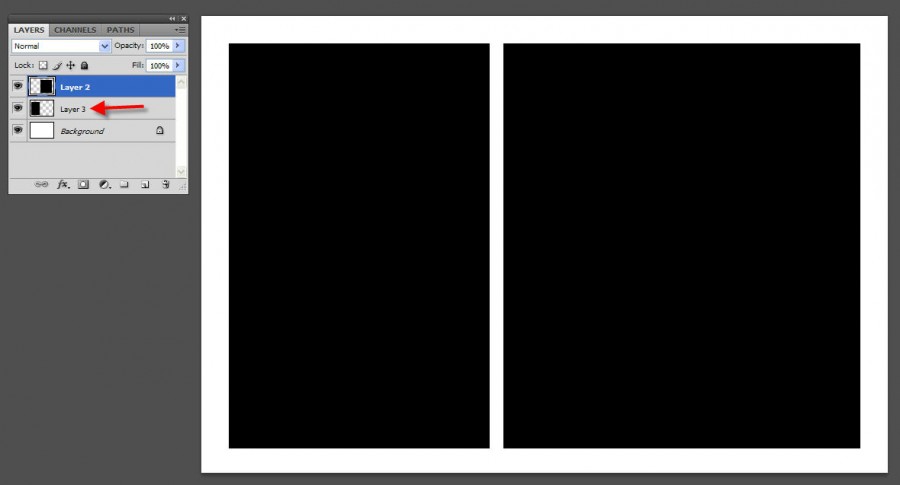
Once you find these, you need to bring the photo(s) into the template and place a photo above the layer. So in this sample, there is a layer 2 and layer 3. Whichever photo you place above layer 2 will be on the right and directly above layer 3 will be on the left.
To move a photo into your canvas, go WINDOW – ARRANGE – CASCADE so you can see things staggered. Then use the MOVE tool to move the photo into the template or card. Once your photo is inside, move it above the layer you need it to clip to, and position so that it is over that shape.
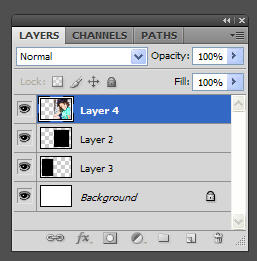
This is what your layers palette will look like with your photo placed above layer 2.
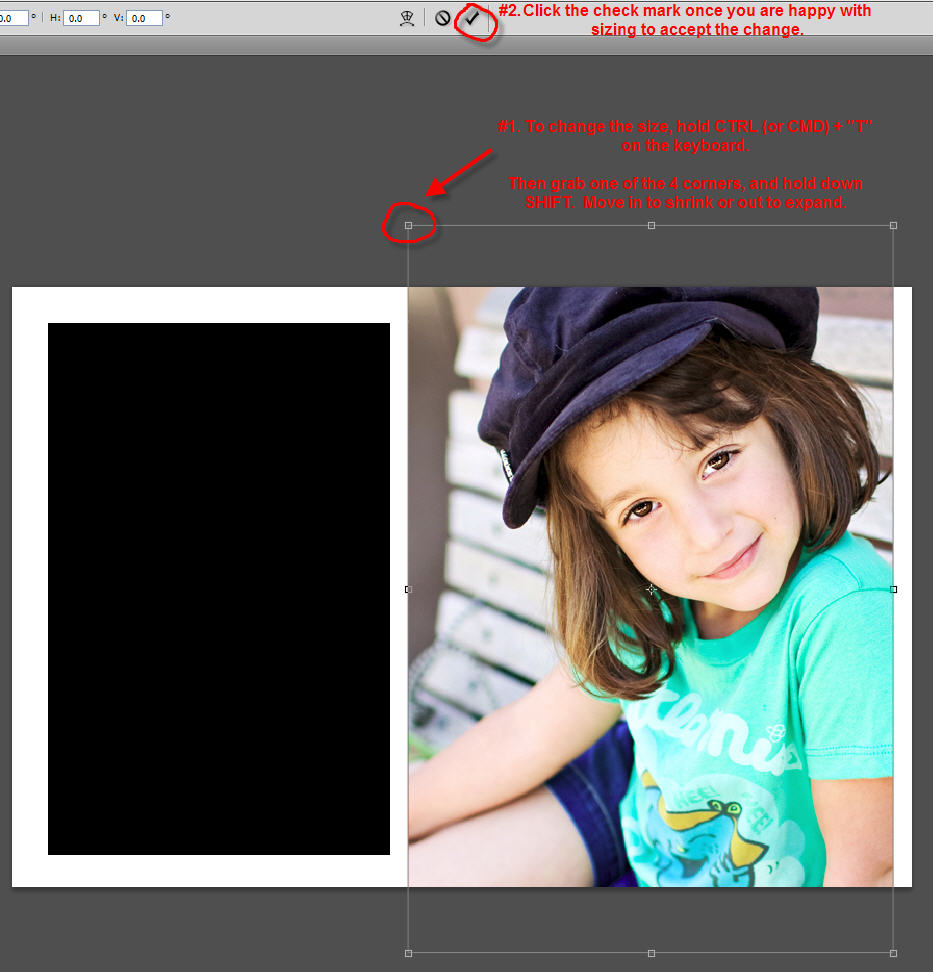
To resize a photo that is way too big, hold CTRL (or CMD) + “T” and this will bring up your transform handles. Then hold down SHIFT KEY. And move in one of the 4 corners to shrink. If you do not hold SHIFT, your photo will distort. Click the check mark at the top to accept the change.
Next you will be adding the clipping mask so that the photo clips just to the shape layer below. There are numerous ways to do this. The easiest way is to go in your layers palette menu and select from the drop down “Create Clipping Mask.” If you prefer short cut keys it is ALT + CTRL + G (OPT + CMD + G).

Once you do this you can move your photo around to taste and it will only be inside that shape below.

Next Step is to insert a photo above each other layer and clip it to the cooresponding layer as well. Then you are ready to save.
As I said this is a basic clipping mask tutorial as related to templates and cards. Clipping masks can be used for a variety of other applications as well. I hope this helps you start understanding them.


No Comments
Leave a Comment
You must be logged in to post a comment.












Recent Posts









you are awesome! thanks jodi 🙂 i never could figure that out! haha…
Thank you Jodi. Great tutorial!!:o)
Thanks a ton!! Except I’m a little on the slow side today…. how do you get the black rectangles again?
Thanks for this tutorial, Jodi. It’s just what I was trying to figure out and here you make it look so darn simple!Also wanted to say how excited I am to see that you are now on PW’s photo “staff”. You sure started off with a bang showing one of your step by step tutorials! I think you are the best around!
Thank you for sharing this. It will help me alot. You are so kind to take all this time to help.
This is just a fantastic tutorial! How totally cool!! Regards,SBL Graphicshttp://www.saibposervices.com/Clipping-path_services.aspx
ok, i never knew how to do that. THANKS!
Thank you thank you. Your tutorial was WAY easier to understand and use than others I came across. I am saving this to my Pinterest in the case I forget how to do this AGAIN!! 🙂
It is really a great and helpful piece of information. I am glad that you shared this helpful info with us. Please keep us informed like this. Thank you for sharing.
Thank you! This tutorial was the easiest to understand!
FINALLY. I have been beating my head against a wall thinking i was missing some really basic PSE skill so that I could use digital scrapbooking templates instead of just the quick pages (which unless I want all my pages to look the same I could only use once). This was the best and easiest tutorial to use. PSE help is completely non-existent. Your tutorial explained the basic fact that the shape of the picture (and it’s location) needed to somehow be attached to the picture (via a clipping mask) and then it would only be visible behind that area. Fabulous. Now the next step for me is to figure out how to easily drag/drop the photos to the layer listings.
Hi Jodi,Thank you so much! This helped a ton today. Much Appreciated!
Thank you Jodi. this is wonderful tutorial….
Thank you so much for this tutorial! 🙂
Thanks Jodi for your wonderful tutorial.Please keep posting like that.
Finally i got a tutorial where i find the exact solution I am looking for. Thank you very much.
Glad we could help!