
Featured Products
-
Sale!

-
Sale!

-
Sale!

-
Sale!

-
Sale!

-
Sale!

-
Sale!

-
Sale!


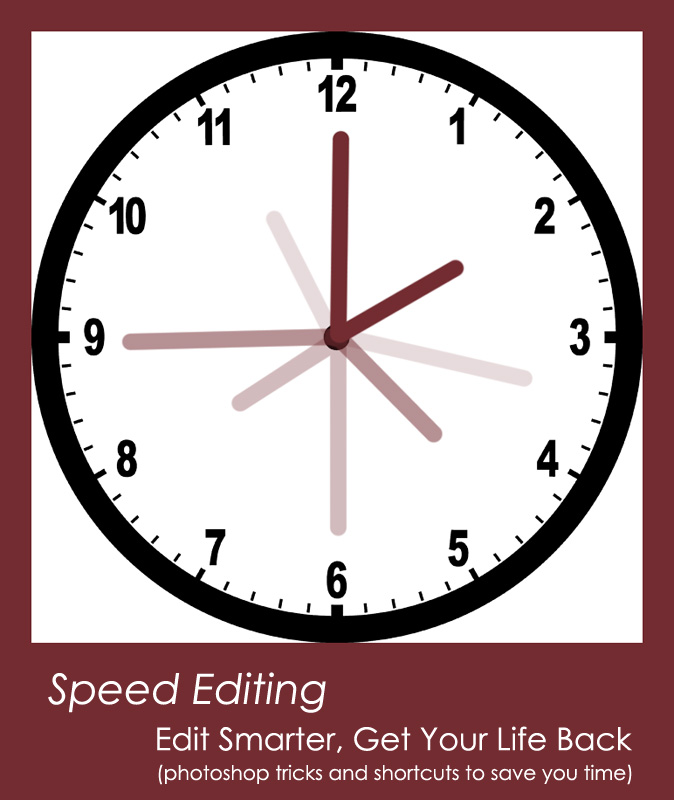
One problem with using photoshop is it can be time consuming. There are many ways to speed up your Photoshop Workflow. I just launched a new MCP Workshop called “Speed Editing – Edit Smarter – Get Your Life Back.” Check it out! But if you do not have”time” to take the workshop – below are some other ways to speed up your very own workflow:
1. Using Photoshop Actions (if you know how to use them, they can be a HUGE shortcut)
2. Batch Editing (being able to do certain things to photos via a automated batch)
3. Creating Photoshop Tool Presets so that you can apply one change to a series.
4. Using tools that speed up processing – a great example of this is a program I stumbled upon recently. It is amazing! Autoloader loads your files one at a time into Photoshop. Rather than clogging resources of your computer, you can have it open your file, run an action (that is already a batch-able style) while keeping it open for editing. The adjust the layers and make changes. Then you press an assigned F key and it closes, saves and opens the next file to be worked on. I tried it and I am a convert – you can do a whole file folder full of photos. And if you step away and come back – it remembers where you left off. No more overwhelmed Photoshop. I emailed the developer and he agreed to give MCP Readers a discount – use the code “mcprocks” for 5% off. Not a huge discount, but something is better than nothing, and this script auto loader is worth it.
5. Using a Script, Batch, or Action to make files ready for web with a frame . For actions, one small part of the huge MCP Quickie Collection contains 3 actions that size and sharpen for web and another 3 that do the same but also add a frame. These are batchable. If you want something more customizable but slightly more complex to set up, the same company that makes Autoloader makes a product called Proofmaker. I know many of you will be excited to try this as I get many requests to make proofing actions. If you want to be able to put your Proof Name on the image or in the frame along with other text, this is a program you must try!
6. Thank you to Danielle Sullivan for reminding me of a time saver I use so much it is just second nature – Keyboard Shortcuts!
I hope these tips help you speed up your Photoshop Workflow. Remember to check out the online group workshop that covers how to speed up your editing by using batching, scripts, customizing actions, designing presets and more.

No Comments
Leave a Comment
You must be logged in to post a comment.



















Recent Posts









great tips!
YES!! VERY interesting in how to control this time-absorbing beast called PHOTOSHOP!!
Yes, count me in!
I would TOTALLY be interested.
I would be very interested!!
I’m suprised you didn’t mention using keyboard shortcuts. Along with the standard keys for tools, you can also cutomize keys for any pallet or tool menu, or even to run an action! For example, I have a shortcut set up to “Flatten Image” and it’s one keystroke away from “Save-As”. So when I’m done working on an image, just to keystrokes finishes it off!
Love the time saving tips! Thank you for reminding me that the keyboard shortcuts are there!
Thank you for the reminders!
For those who were interested, the workshop is listed under the Workshops tab at the top of the blog.Thanks!
True Article… 🙂