
Featured Products
-
Sale!

-
Sale!

-
Sale!

-
Sale!

-
Sale!

-
Sale!

-
Sale!

-
Sale!


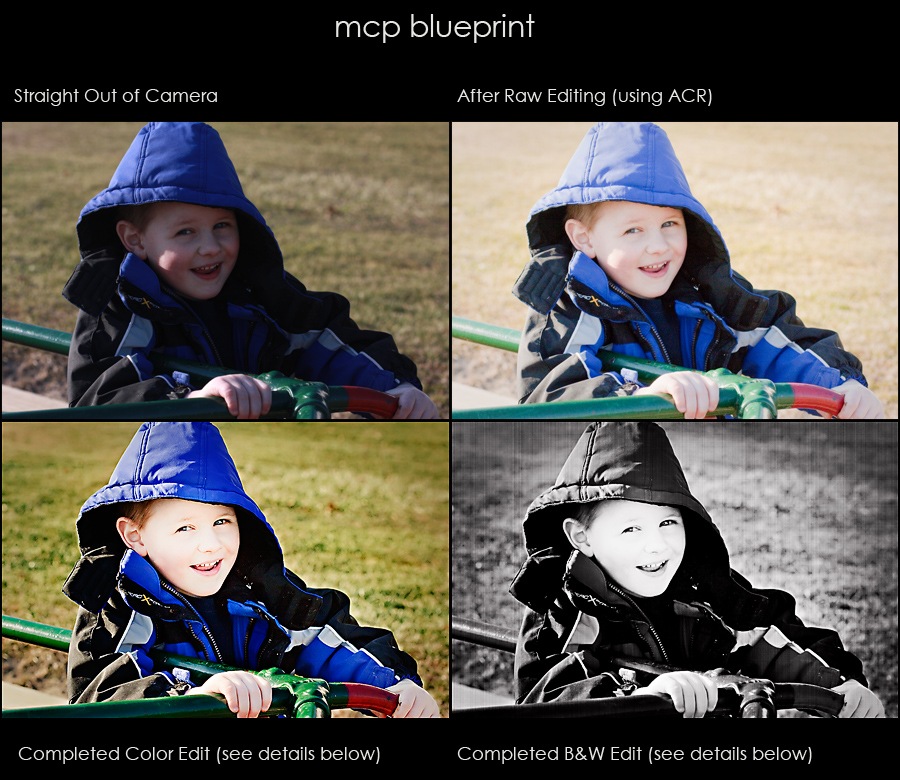
This week’s photo comes from Fix It Friday at I Heart Faces. I participate as a contributor there periodically. This particular photo needed lots of help as it was severely underexposed but had a sunspot too. I do most of my work in Photoshop as you know, but will use Adobe Camera Raw or Lightroom as a quick starting point or for more severe issues like this.

Here are the before, after raw (pre-Photoshop), color version in Photoshop, and a black and white edit (done on top of the color edit). After the photos – I will teach you the blueprint of how I achieved these results. I do love bright skin. If you do not, I would recommend toning down the opacity of some of the layers I created.
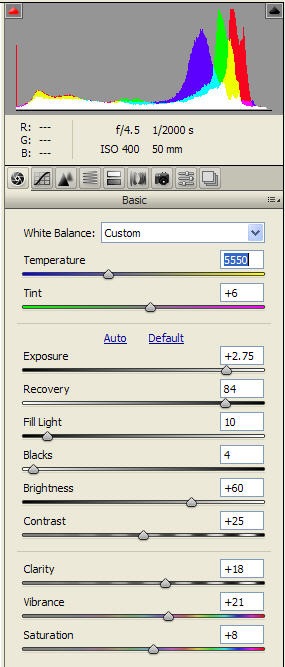
Now for the blueprint… Starting with the SOOC, I used ACR (Adobe Camera RAW). Here were the settings I chose. I heavily used the exposure slider and recovery slider (as you can see) and I changed the color temperature to one better suited for daylight. I also added a touch of fill light, light clarity, vibrance and saturation.
From there I opened the photo up in Photoshop CS4. Here were my steps – mostly running actions and masking, but also doing a few steps manually.
- Ran Touch of Light Action (and applied lightly to face with 30% opacity brush) and Touch of Darkness Action (and applied to background and jacket – especially hood)
- Flattened
- Duplicated layer and used patch tool to get rid of sun spot on face (cheek)
- Made a hue/saturation adjustment later to alter the grass. Selected yellow channel and increased the hue and saturation while decreasing the lightness
- Masked back the boy and the clothing and skin from the hue/sat layer
- Ran Touch of Light/Touch of Darkness Photoshop action again – and added depth to the grass and hood of the coat by painting using the mask on the darkness layer
- Ran MCP Color Burst from the Complete Workflow Set at default opacities – and used paint on pop layer just on the grass
- Ran Skin Cast Blast from the Magic Skin Action Set (using Bye Bye Blueberry to get rid of blue/add yellow)
- Ran Eye Doctor – just used sharp as a tack and catch light layer at very low opacity
Those were all the steps needed for the color edit you see. For the black and white I used the completed color photo and just did two more steps:
- Ran Rocky Road Ice Cream from the Quickie Collection – masked skin back from the texture
- Ran Burnt Edges Action and adjusted the opacity
The following actions used on this picture are free in the TRY ME section of my web site: Touch of Light/Touch of Darkness, Burnt Edges
The following actions used on this picture are available for purchase on my site: Color Burst (from the Complete Workflow Actions), Skin Cast Blast (from the Magic Skin Action Set), The Eye Doctor, Rocky Road Ice Cream (from the Quickie Collection)

12 Comments
Leave a Comment
You must be logged in to post a comment.









Recent Posts









Wow, Jodi, that is an amazing recovery. I have a question though – I was taught that whenever the exposure slider is pushed past about -1/+1, the quality of the image is pretty degraded. Is this a problem for you?
Hi Jodi!! Great blueprint today! I have a quick question…why did you decide to run the dodge/burn and hue/sat adjustment at the beginning, before running the Color Burst action? I usually START with the Color Burst action, and finish with the Touch of Light/Touch of Darkness, so I’m just curious. Also, did you tweak any of the Color Burst layers? You rock!! Love you girl!
great post, jodi!
Ok I need to figure out this “patch” tool. I have cs4 too…:)
thanks for sharing your genius secrets with us!!!
Nicole – Yes – when you increase or decrease the exposure it does bad stuff. That is why even though RAW can save you, you are better off nailing exposure. But in a pinch it helps – that said I would not print a HUGE canvas of a shot that was this off. And you can see it lacks details in the face and such – you definitely compromise something.Kim – I always try and fix exposure 1st, color second, then run actions. 99% of the time – I go straight to the action as the exposure is fine. On this photo given to me for editing – the exposure still needed tweaking. So I fixed that. Then I fixed the color issue – in this case grass. Then I worked on the overall… If I did not darken the spots on the jacket a tad – they may have even gotten close to blowing out. Does that help?
Great job!I am here because someone has nominated you for an Aawesome Blog 2009 Award!Stop by and see what category they thought you rocked!http://awesomestblogs2009.blogspot.com/God bless-Amanda
Really beautiful job Jodi! Like always. Thank you for sharing : )
I consider you an amazing teacher! I have learned sooo much from you. You astound me with all your knowledge! I just wish I could like live with u LOL!!!
awesome work, jodi! thanks for posting such a great how-to! 🙂
I’m curious – why do you so enjoy bright skin? I can’t help but feel there’s some loss of detail and shape when you overexpose facial features. I’d love to do a comparison of a “correctly” exposed face and a “bright” version.
Ernie – photography is very subjective. As such everyone has different opinions. I like that creamy smooth looking skin that comes when pretty bright. I also know that prints tend to come back slightly darker than what is sent in since screens are backlit. I probably lose some light details but nothing is blown out and by losing details it gives a smoother feel. Again – I know this is not for everyone and often state that. People needs to edit in a way they love. Some love vintage where much color and contrast may be lost, as an example. I can appreciate that work but I do not do that as it does not fit my style. Does that answer your question?Jodi