
Featured Products
-
Sale!

-
Sale!

-
Sale!

-
Sale!

-
Sale!

-
Sale!

-
Sale!

-
Sale!


One thing that drives me crazy in Photoshop CS4 is the tabs. They look pretty but they seem to make certain tasks like dragging one photo into another much more difficult. If you work with templates a lot, you likely know what I mean.
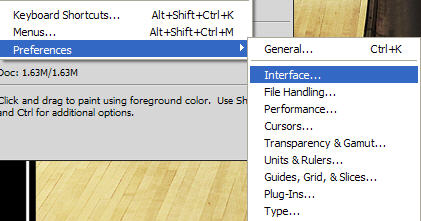
There is an easy way to fix this so the photos float instead of dock in tabs. Go under EDIT – PREFERENCES – INTERFACE.
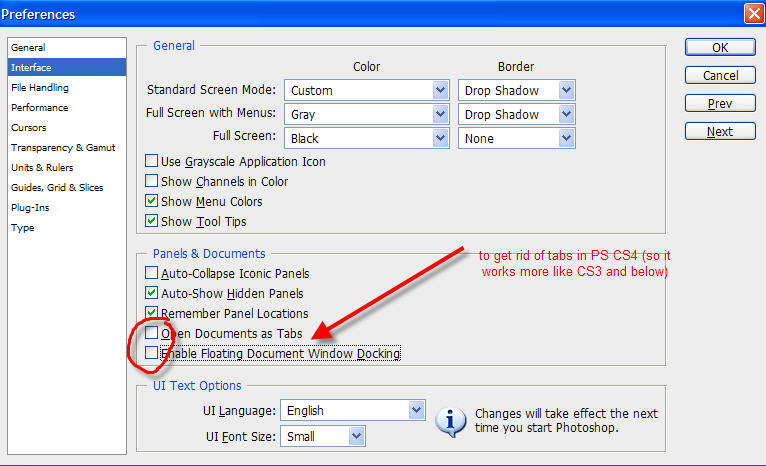
Next uncheck the boxes that say “Open Documents as Tabs” and “Enable Floating Document Window Docking.” After unchecking these. You need to close all photos and when you re-open them, they will no longer hug the top toolbar as tabs.
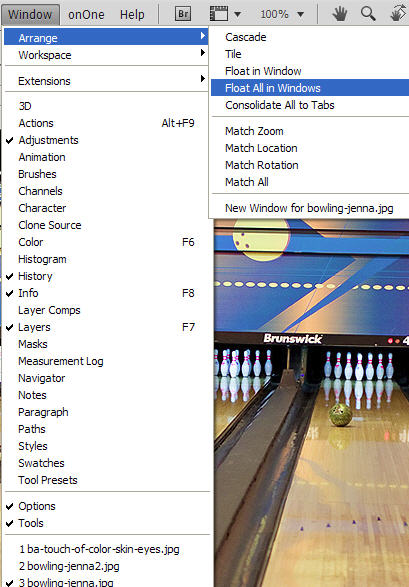
Once you have done that, no tabs will be your default. You can still go under WINDOW – ARRANGE to change the look. You can make tabs by checking off “Consolidate All to Tabs” or you can “Cascade” or even “Float” them. I hope this helps you. If you have any other good CS4 tips that will help make it more user friendly, please add them to the comments. If I feel a lot of people could benefit, I may even escalate some of the tips to full posts!

No Comments
Leave a Comment
You must be logged in to post a comment.












Recent Posts









you’re the best! Just got CS4 and it’s driving me CRAZY!!!!!!!!!!!! :)Thanks
LOVE this tip…that is the biggest complaint I’ve had about CS4. I design templates as my main photoshop work and this has made me completely bonkers.thank you!
I have CS4 too but still use my trusty CS2…haven’t made the switch over yet. Can’t figure out how to load all my actions because it looks so different than the CS2.
Thank you SO much! One of my main complaints when I switched! Thanks for the great tip!
Great… it’s been driving me nuts! Thanks.NightinGail Photography
Thank you so much for showing me how to do this. It WAS driving me nuts. I was on the fence when it came to upgrading to CS4 because I really found this feature (supposedly useful) a royal PITA. Now, I’ll gladly make the switch.
Thank you, thank you, thank you!!!
Thanks for this info. Also, is there a way to easily make the image take up the whole window without losing your layers, info and actions tabs? When I click to maximize the image it expands to the size of my monitor and all of the tabs on the right disappear, so I’ve been having to drag the corner of the window to make it bigger each time I open a new image. It’s a major pain to do it manually.
Wendy wrote: Thanks for this info. Also, is there a way to easily make the image take up the whole window without losing your layers, info and actions tabs? When I click to maximize the image it expands to the size of my monitor and all of the tabs on the right disappear, so I’ve been having to drag the corner of the window to make it bigger each time I open a new image. It’s a major pain to do it manually. (05/12/09, 9:42 am) Wendy, yes view>screen mode>full screen mode with menu bar. My question is… on a MAC, how do I make that my default every time I open up photoshop.
I am new to CS4 so more tips like these would be great! It seems so basic, but I would never have thought to try to change that, I just continue working with it and hating it!! Thanks 🙂
Oooh! Thanks! That has been driving me nuts!
Oh my goodness, thank you so much!
Bless you! The tabs were driving me absolutely crazy!
THANK YOU. THANK YOU. THANK YOU!
Thanks for sharing this. I have always wondered how to turn off the tabs. It was driving me crazy, just like everyone else. Now I can move on past the one major annoyance I had with CS4. Thanks again for sharing this tip, and for sharing all your tips, Jodi! They really help us all become better photo editors.
ok Jodi, this is THE best tip i’ve ever been given. seriously.i’ve asked around and nobody could help me with this.it was frustrating me no end.i seriously love you right now!
Thanks for this one Jodi. I was making a layout just now and I was so frustrated with those tabs! Definitely something to tweet about!
Figured this one out early on!! It was driving me nuts….Anyone having issues with the new macs and CS4. I use my laptop to edit and when using two fingers to dodge or burn it zooms in and out. It will also rotate the pic. It has something to do with the mouse pad. When using two fingers on the new Macs it causes pics to zoom in/out. CS3 had no issues like this. Very frustrating
Original is eye-catching and current but bold is stunning- super hard choice!
Can I just say I LOVE YOU! I just switched to CS4 this week and I HATED that feature. THANK you so much for fixing it for me. Now back to work!
Thanks! I hated that about CS4 and now I can change it. Yea!
Hi, Happy to find this solution. Do you have a solution for the windows in CS4 (all programs) sliding up under the tool bar so you can’t move them unless you select “cascade” under View. Thanks!
Had this problem also! Another tip is to hit “tab” and it’ll hide all of the PS windows and give you just the image window (with tabs if left enabled) you can then move the window down and hit tab again to bring them back. Also you can hit command + 0 (zero) and it’ll adjust the window to be full width of your screen, move it below the toolbar, and zoom the image up as big as possible (which you can then just zoom back out).