
Featured Products
-
Sale!

-
Sale!

-
Sale!

-
Sale!

-
Sale!

-
Sale!

-
Sale!

-
Sale!


 This article was written as a follow up to Color Management: Part 1, by guest blogger Phillip Mackenzie.
Color Management: Part 2
Soft Proofing to Achieve Closely Matched Color Online and in Photoshop
Assuming that you do most of your photo editing in either Adobe RGB or ProPhoto RGB (LR’s native colorspace), you’ll need to convert your images before exporting them for your website or blog.
Soft proofing is a handy way to make sure your conversions will look as you intended while you’re still working on your images. This method works for multiple outputs (i.e. CMYK as well as both Windows and Macintosh default monitors) as well.
You can “soft proof” your conversion by going to View > Proof Colors (Cmd+Y on a Mac, Ctrl+Y on a PC) or Proof Setup, followed by selecting one of the Standard Mac/Windows Profiles (only difference there as far as I know is the Gamma; 1.8 vs. 2.2).
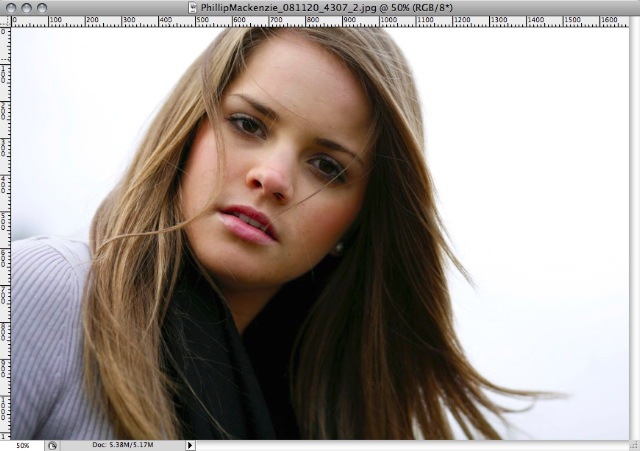
Here’s my original image that I’m starting to work on in Photoshop.

My working RGB space is sRGB, but this file has the Adobe RGB space embedded. You can tell because the text in the title bar of the image changes, and now has an asterisk next to the RGB/8:
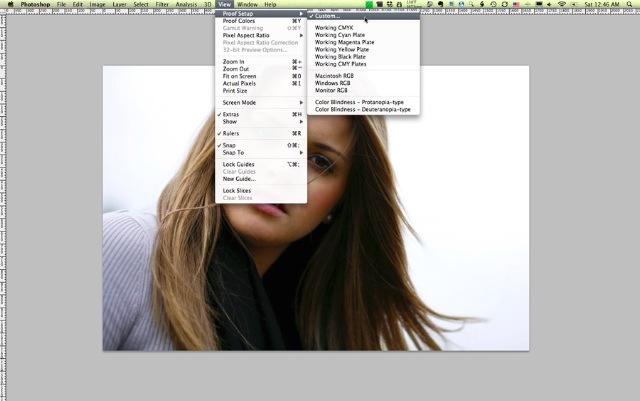
To “soft proof” the image, I go up to the View > Proof Setup… > Custom…
The following dialog box will open:
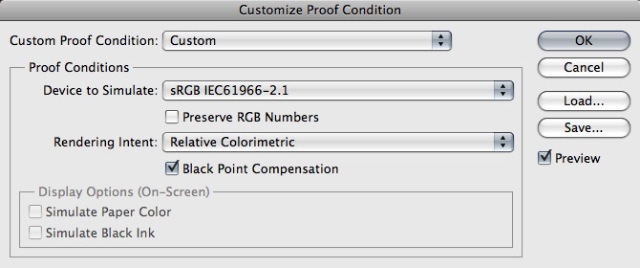
Make sure to select “sRGB” in the Device to Simulate, and make sure to deselect “Preserve RGB Numbers.” If you don’t, you’ll actually proof what it would look like if you just assigned a profile instead of converting to one. Here’s what my image looks like if I leave that box selected:
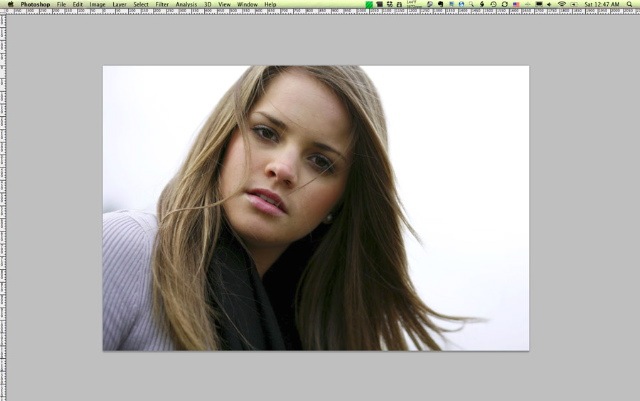
I don’t need to tell you how much worse this image looks; it’s lost contrast and saturation. And be warned, this is representative of what happens if you save your file with an Adobe RGB profile embedded instead of sRGB on a browser that isn’t capable of recognizing color profiles (IE, for one). We need to make sure that doesn’t happen to your images, unless it’s what you’re after. I prefer my images nice and saturated and with a healthy does of contrast!
Select “Relative Colorimetric” for Rendering Intent, and make sure the Black Point Compensation is selected. This will make sure to use the widest possible color gamut when converting to sRGB. You can read more about the various options for Rendering intent in Adobe’s Online Help Center: Rending in Photoshop
Once you’ve done these custom settings, activate your soft proof by Cmd+Y (Mac) or Ctrl+Y (PC), or by selecting View > Proof Colors:

Notice what happens now to the title bar of the image:
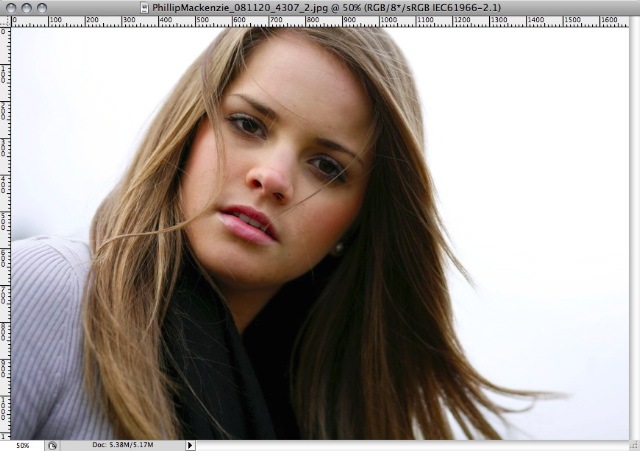
This is the quickest way to tell if the image you are viewing is still the soft proof or the original image.
Even though this essentially shows you the same thing as the “optimized” image in the Save For Web dialog box, it’s handier because it can be used at any point in your workflow, or whenever you want to see if a certain color or hue will show up in sRGB as it does in either Adobe RGB or ProPhoto RGB.
You can also use this soft proofing technique to simulate a standard Windows Monitor (Gamma setting of 2.2) or Macintosh monitor (Gamma setting of 1.8). I don’t recommend using “Monitor Color” because it bases the settings off of your own monitor, and therefore will not transfer well to other people’s monitors, which may be more or less calibrated than your own.
Here’s some more information about soft proof colors from Adobe: Soft Proofing
Another fun preview option can be found in the Save For Web dialog box. There’s a drop-down menu at the bottom left side of the box that will allow you to preview the image within the web browser of your choosing:

I’ve highlighted the list of three browsers that I most often use on a Mac, but you can add as many browsers as you like to the list, including IE in Windows. This will allow you to test multiple browsers to make sure that the color profile is being honored in as many browsers as possible.
Just make sure to leave that “Embed Color Profile” option selected, so that the person looking at your site or blog is using Firefox 3 or Safari, they will have your color profile information applied properly in the browser.

No Comments
Leave a Comment
You must be logged in to post a comment.
















Recent Posts









awesome! thanks for sharing!!! 🙂
Thanks, I just read about soft proofing the other day and had no idea what they meant! This helps so much.
Very Timely info Jodi! Thank you. I am still trying to figure out my printing workflow. I went to print yesterday and the image was so much darker than the LR 2 version. I would love to know the best possible scenarios for spot-on color when printing. Understanding your printer and how it works with PS and LR would be a grand addition to all of the wonderful color adjustment posts you have just done.Thank you for teaching us!
I will never stop saying Jodi is the Jedi Master of Photoshop!! She has taught me sooooo much and continue to learn with new posting such as this…For my color workflow I use an eye one2 calibrator with my new 17inch mac book pro (matted screen). I live in the Dallas area and started using BWC along with whitehouse at times. I downloaded their printed profiles from the web and often soft proof my files prior to sending in. Some color gamets just wont be seen in print ie reds might be muted. Beth I feel your pain on dark prints. I used to have very similiar issue. One thing that really helped was a calibration device ie spider or eye one2. Next high quality print lab….IM sure many will Gasp but when first starting we used used Sams and Costco. The prints were just horrible. Switching to whitehouse and BWC made hudge difference when soft proofing. Last I have to give props to my new Mac Book Pro. It is spot on when viewing files and sending to print…I have owned several mac and this is hands down the most accurate color!!Ok one last shout to Master JEDI JODI!! THE FORCE IS STRONG WITH THIS ONE!! Her last color correction class made it all clear!! She gives simple tips to help correct problem areas and correct tones that can go wild!!
This was incredibly helpful to me today. Thank you. It was driving me crazy how the picture that looked so pretty on my screen…was looking gray onscreen. Thank you Thank you for your blog!Now, I just need to decide which monitor calibrator to buy!