
Featured Products
-
Sale!

-
Sale!

-
Sale!

-
Sale!

-
Sale!

-
Sale!

-
Sale!

-
Sale!


Today Daniel Hurtubise is going to explain his process of getting his images from CF cards to computer after a photo trip or big on location shoot.
When you come back from a shooting in location, you usually comeback with a LOT of images. So today I’m going to walk you through my first step when I first sit at my desk.
I personally use a Sandisk card reader and shoot on CF card. My D300 gives me between 200 & 300 shots on a 4 GB card. I then set myself a rule, no more than a 200-300 shots on a card. Considering that you know can even get a 32 GB card I get scared of the amount of information those can store. What if the card fail? So I figured that losing 200-300 shots was the worst my heart could survive (and believe me this is still a lot). So I mostly shoot 4GB card but I have 3 x 8GB for shooting sports/product-category/photoshop-actions/. That allow me not to miss any action while swapping a card. Which is obviously not an issue while doing studio or landscape.
I only shoot RAW, always did and always will. About a year ago I discover the DNG format from Adobe. Instantly fell in love. I call that format the PDF of RAW files. The main reason I use it are simple. It’s smaller than the original RAW file, it’s a file format that I know I will be able to read in 10 years and I don’t have to save an .xmp file.
So now that we know the basics, let’s get started.
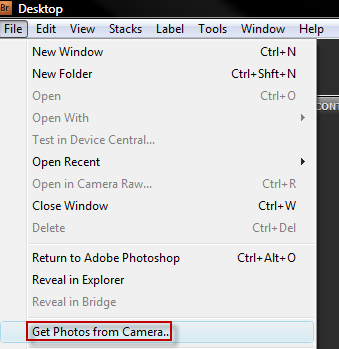
Start Bridge(comes with the Photoshop install) and go to the File – Get Photo from Camera
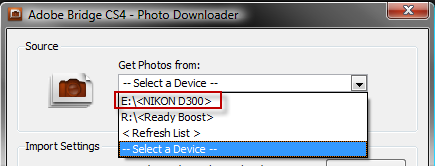
The first step is to use the drop-down menu under Get Photos from: to select your card reader (if you don’t have one, go get one. Stop using the USB cable that came with the camera. The card reader is a lot faster and cheap)
Then you need to tell Bridge where you’re going to save those files.

I personally organize my files by date and I add a note to know what it is. But I rarely search for images through the Windows Explorer. I prefer using metadata within Bridge for that.

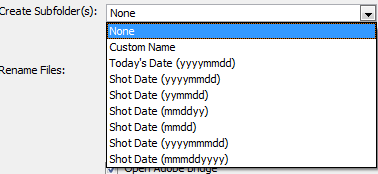
You also have an option to create sub-folder based on some criteria like the date. That’s something I don’t use because I prefer organizing by dates even though the whole gallery might be over several day. If it’s the case I will use the first date and store all the images under that folder.
You can also rename the files. I know a lot of people are into that but again since I never browse without Bridge I never had the need so I keep the original Nikon with a slight variation. _DH (Daniel Hurtubise)
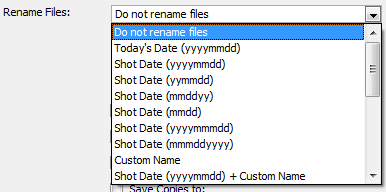
Here’s an option I don’t use since I use DNG. But this will embed the original file name in the .xmp file.

You have the ability to Open Bridge if you run that say from within Photoshop

The process will automatically convert to DNG if that’s check.

Settings will then allow you to:
Specifying the size of the JPEG preview that is used by Bridge for example. I always set mine to Full Size. Takes a little bit longer but I always get a better quality preview.
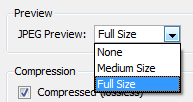
When compression is check you will get a smaller file size with no quality loss. Much like a zip file. Always check for me.

The Image Conversion method can convert to linear but I prefer trying to preserve the raw image to make sure I don’t lose any information.

The last option allows you to saw the original RAW file within the DNG. That will make a huge file because you basically have the DNG and the RAW in it. So a no go for me.

The last option allows you to save a copy to another folder as a backup but … it saves the RAW file. Since I only care for DNG it’s a step I do manually. I have my working drive but as soon as I convert the RAW to DNG they get copied to my another backup drive.

All you have left to do is … press Get Photos, sit back and relax.

No Comments
Leave a Comment
You must be logged in to post a comment.














Recent Posts









I love this tutorial! I’ve been using Windows Gallery import wizard, it’s good, but limited. I didn’t know one could get so detailed importing with Bridge. Thanks!
thanks Jodi for the tip on the dng files…getting ready to purge and save tons of space!!!!!
LOVE LOVE LOVE workflow related posts! More please! Very interesting information on DNG and importing with Bridge. Gonna have to process that some more!
Thank you for the awesome tip! I have a quick question… is there a way to resave the nef files currently on my hard drive as dngs?
very interesting, i always, ALWAYS learn/discover something when i visit your blog jodi! every time…thank you!