MCP Actions™ Blog: Photography, Photo Editing & Photography Business Advice
The MCP Actions™ Blog is full of advice from experienced photographers written to help you improve your camera skills, post-processing and photography skill-sets. Enjoy editing tutorials, photography tips, business advice, and professional spotlights.

How to Promote Your Photography Business
As every photographer knows, every day in business is a hustle; you will spend just as much time trying to get work as you spend actually working. This means that in addition to your technical skills and spending time photographing, you need to deploy effective online marketing strategies and be visible on the internet –…
Tips On Drawing Landscapes In Digital Art
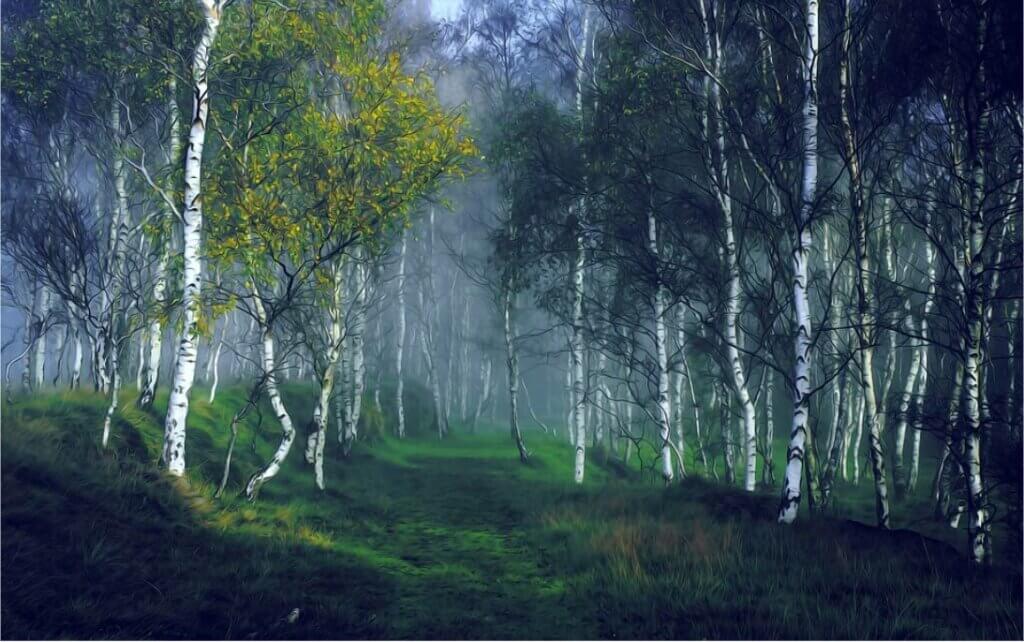
Nowadays, digital art has become more and more popular. People use digital art to create all kinds of things, including landscapes. If you want to create a beautiful landscape in digital art with a Procreate brush and other tools, here are some tips for you: 1. Choose The Right Software There are many choices of…
How to Build Your Profile as a Freelance Photographer
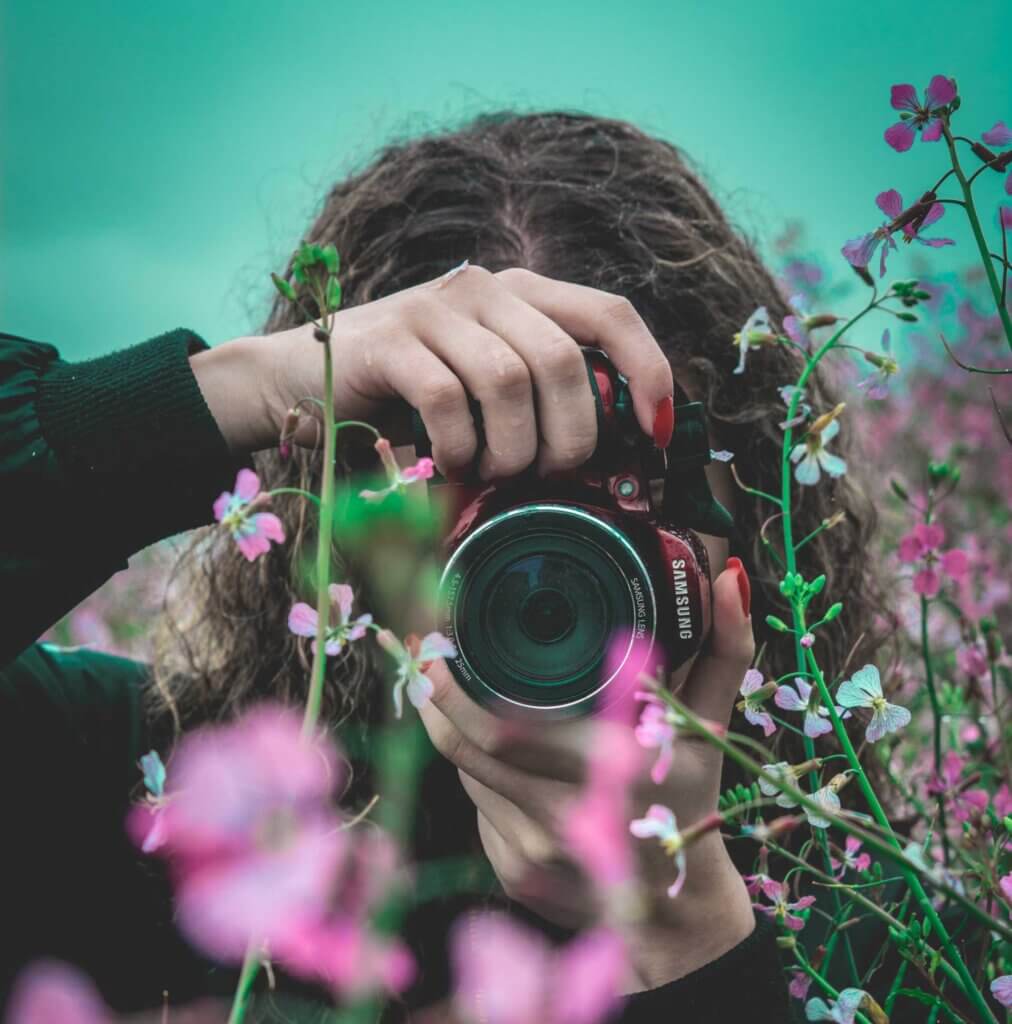
Being a professional photographer can be a very exciting career, but if you prefer to work on your terms, then choosing a path as a freelance photographer might be better for you. However, freelancers have different kinds of challenges and making sure that you are the one who gets picked for a job in a…

How to Build Your Profile as a Freelance Photographer
Being a professional photographer can be a very exciting career, but if you prefer to work on your terms, then choosing a path as a freelance photographer might be better for you. However, freelancers have different kinds of challenges and making sure that you are the one who gets picked for a job in a…
Fashion Photography Tips For Shooting & Editing
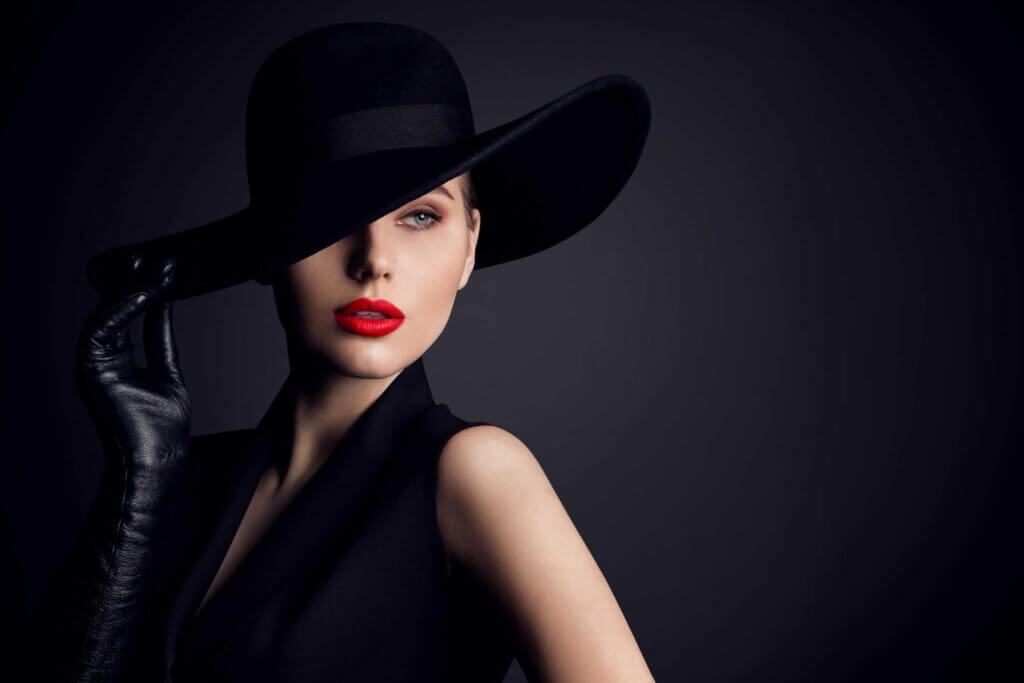
What is fashion photography? Fashion photography encompasses a wide range of subjects, including runway shows, brand catalogs, model portfolios, advertising, editorial shoots, and more. Fashion photography’s main goal is to show off clothing and other fashion accessories. A Fashion brand’s success depends upon the quality of the images they use in their catalog. Photographers are…
Dollar Store Lighting for Photographers on a Budget
Using a simple DIY reflector fill board from a dollar store, you can get professional lighting results cheaply and easily.
5 Tips for Photographers to Get In Photos with Their Families
Getting in photos with your loved ones is so important. Here’s ways to help photographers let go and start becoming part of those memories.

What to Wear Guide For A Maternity Photo Session
This blog post will give you ideas on clothing that looks great and is comfortable for a maternity photo session.
Why and How to Calibrate Your Monitor
Monitor calibration is an important part of photography, but not everyone knows how to get there…but it’s really easy and this blog will tell you all about it.
12 Essential Tips for Successful Newborn Photography
Learn the most important tips for successful newborn photo sessions – all in one easy to read article.
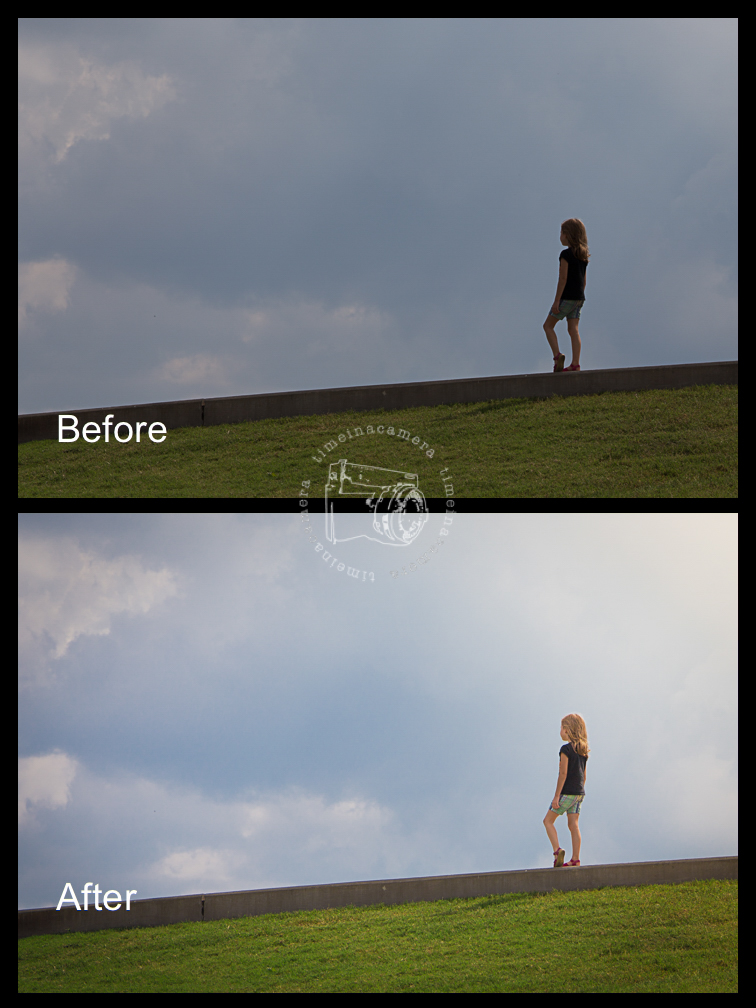
One Minute Lightroom Edit: Underexposed to Vibrant and Warm
Follow these quick steps to fix underexposure — get a better Lightroom edit and improve your image in one minute or less.

Use The Creative Process to Improve Your Photography Skills
The creative process can be used to improve your photographic skills. Here’s a project that can inspire you to try something similar soon.
So….You Want to Break Into Weddings?
Want to break into wedding photography? Here’s what you need to know before you book your first wedding.

Inspiring Photography Projects That Build Your Reputation
Use photography projects to not only inspire yourself but also build your reputation and your business.
5 Reasons Every Beginner Photographer Should Be Editing Their Photos
For a beginner, editing can be intimidating. There’s a whole lot of software out there and it all seems designed purely to make me want to give up on photos entirely. I make no secret of the fact that I don’t understand what half of the buttons mean and they frighten me a little. When…

How to Add Volume to Smart Phone Photos
In this post, you will learn about the main things you can do to add volume to your photos. Even if this applies to full-sized cameras, our target is to help you improve your smart phone photos. Digital photography has advanced so much in the past years. Technology became cheaper and cheaper, while the photo…

How to Take Expressive Photos of Pets
Most people need a significant amount of guidance during photo shoots. Without it, they feel awkward and out of place. Animals, on the other hand, don’t feel self-conscious. Their never-ending enthusiasm and curiosity resemble the purity of children: unadulterated and unfiltered joy. The oblivious nature of animals may become a troubling obstacle if you’re used…
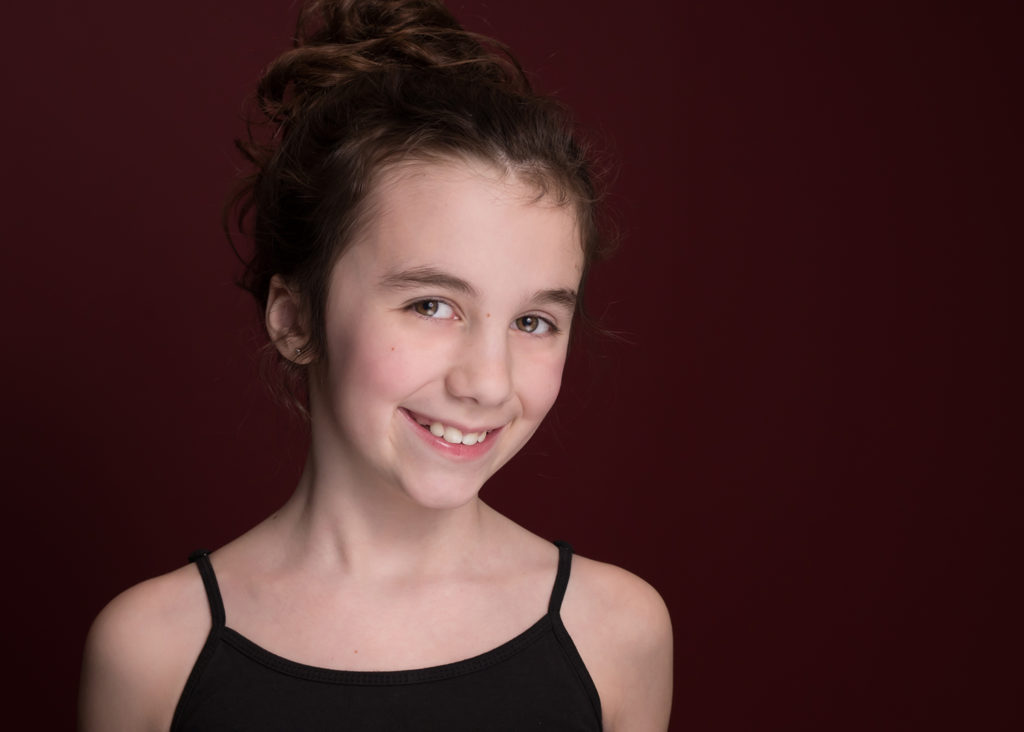
One Flash Off Camera Lighting Setup for Portraits
For those of you venturing into one flash-off camera lighting for the first time, there’s a lot of things to consider. A few of the most popular questions include: What flash do I need? Do I need a lot of expensive gear? How do I control the ambient light? How do my flashes work? MCP…
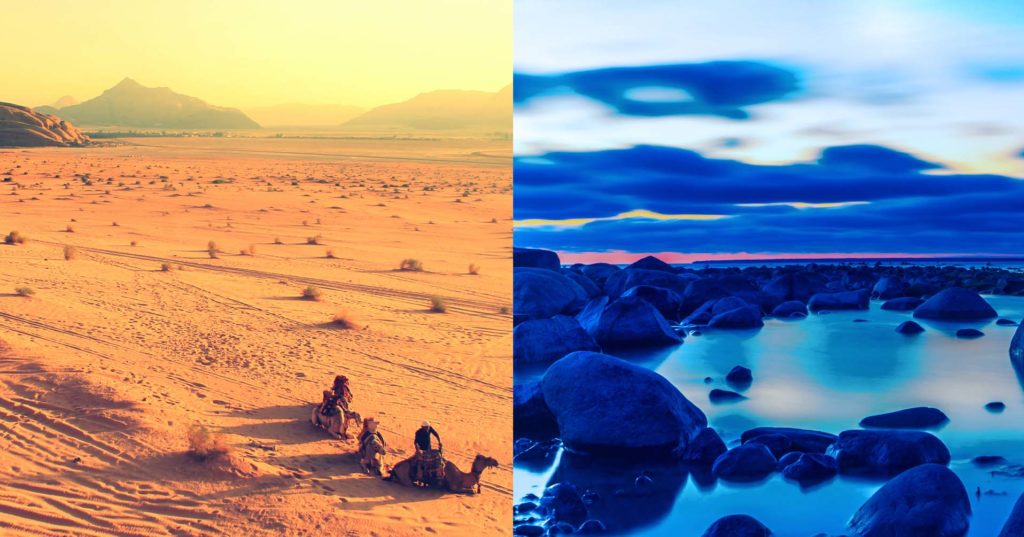
Photography Essentials for Absolute Beginners
If you’re new to photography and you’ve just bought your first DSLR it can seem like a daunting task learning what all the buttons and dials do. Even if you have lots of experience shooting on your phone or with a compact camera, working with a DSLR is a whole different ball game and it…
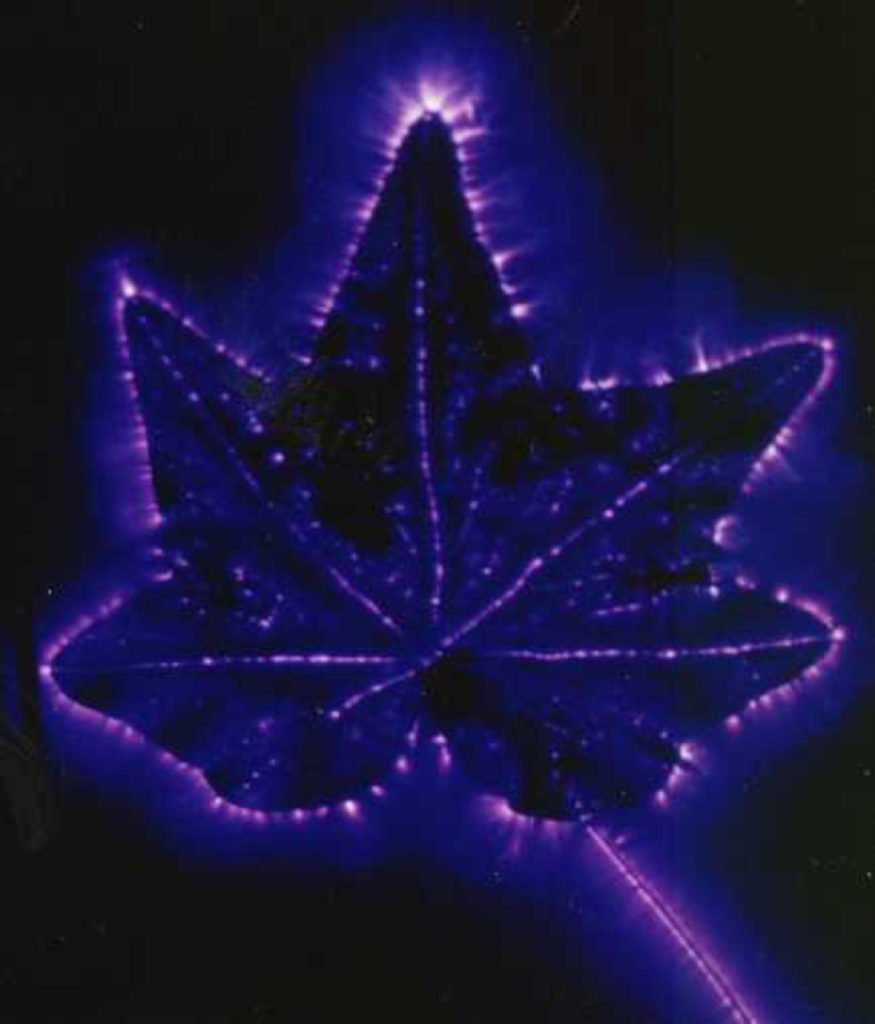
How to Take Kirlian Photos: My Step by Step Process
Kirlian technique has been a mystery for a long time. Some people still believe that magic forces or auras are shown in Kirlian photos. Despite this fact, high voltage is responsible for the whole process. This technique is not recommended for beginners because it involves high voltage and special equipment. In this article, I will…
Recent Posts