
Featured Products
-
Sale!

-
Sale!

-
Sale!

-
Sale!

-
Sale!

-
Sale!

-
Sale!

-
Sale!


In this post guest blogger Stephanie Gill of Tiny Tot Snapshot will show you how to make basic cards in Photoshop using the brush tool. Thank you Stephanie for this fun, easy to follow tutorial.
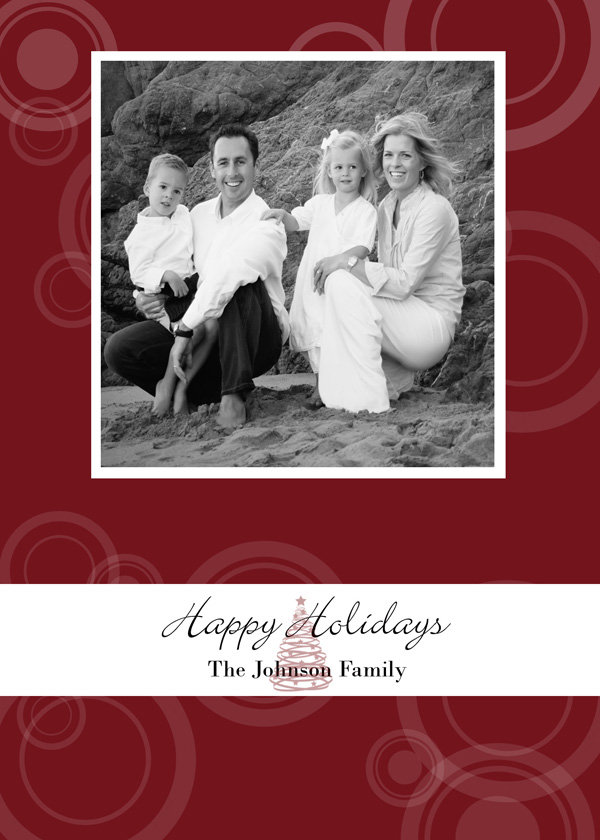
Hello again, today I am going to give you another way to put your Photoshop brushes to use. Since the holidays are coming up, I would like to show an example of a holiday card.
To begin open the correct paper size, Go to FILE< NEW < select WIDTH & HEIGHT in INCHES < set RESOLUTION at 300 pixel/inch.
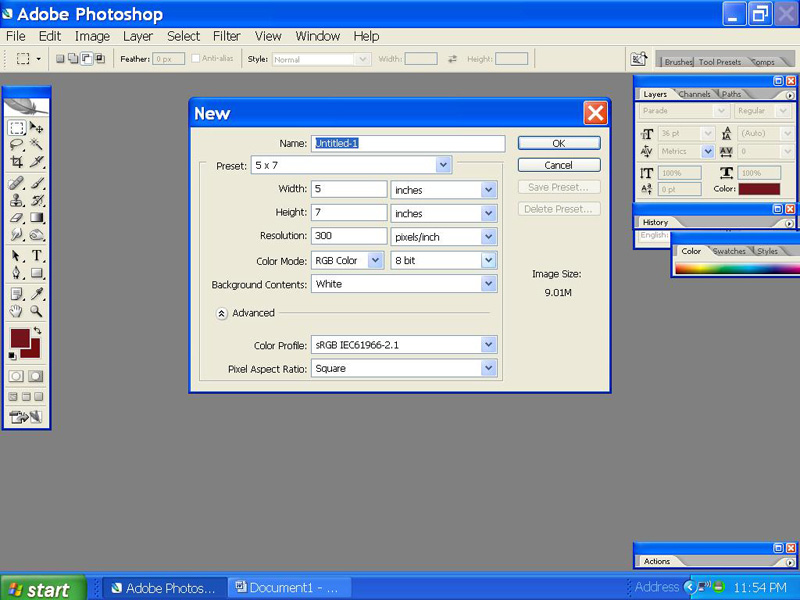
I am using a 5 x 7 page because I want to make a holiday card. Once you pick your size then you need a background color. I already have all my holiday brushes loaded in my brushes pallet, (check out my previous blog postings, to find great links for finding brushes). Choose which color you want your brush to be.
You will notice in the brush pallet above that I have several circle brushes; I will be using many of them to achieve my design. When you choose the diameter of your brush (see yellow dot 1, below) you will see the outline of the brush over your paper, adjust your diameter as needed. You will also need to adjust your opacity (see yellow dot 2, below), this will adjust how faded, or hard the color of your brush will appear. Since I want a soft design, I will put my opacity at 40%. You will notice that my brush does not appear as a solid white (and it won’t even if my opacity is set at 100%, this is because of my particular brush). All brushes are made differently, sometimes you will come across brushes that will be very soft at 100% opacity and others are very hard at 100% opacity. If you come across a brush that is still far too soft at 100% opacity and you want a hard, crisp, colorful brush then set your opacity at 100% and then click the “airbrush capabilities” button ( see yellow dot 3, below). Hold it down on your page until you get your desired look.
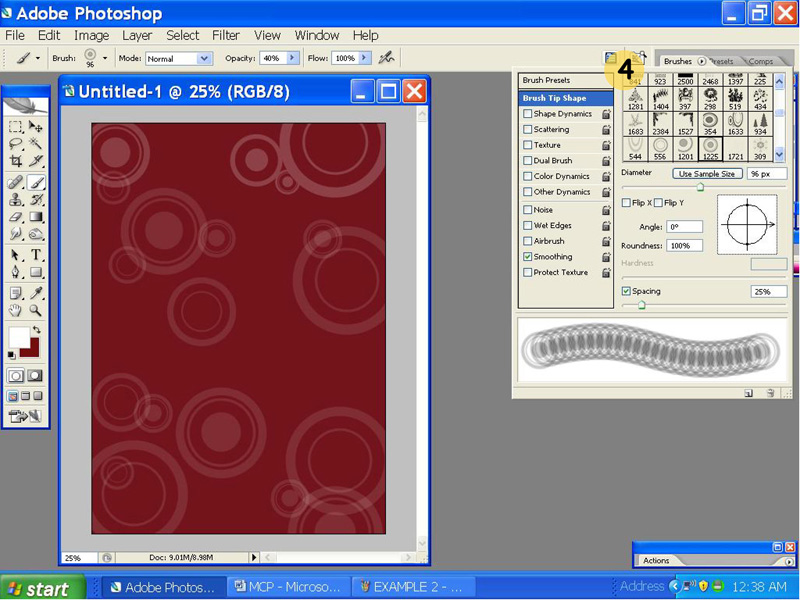
You can also adjust the angle of your brush by using your “brush presets” and “brush tip shape” pallet located on the right side of your screen (see yellow dot 4 below). I go more into detail about how to do this in my “digital make up” blog post.
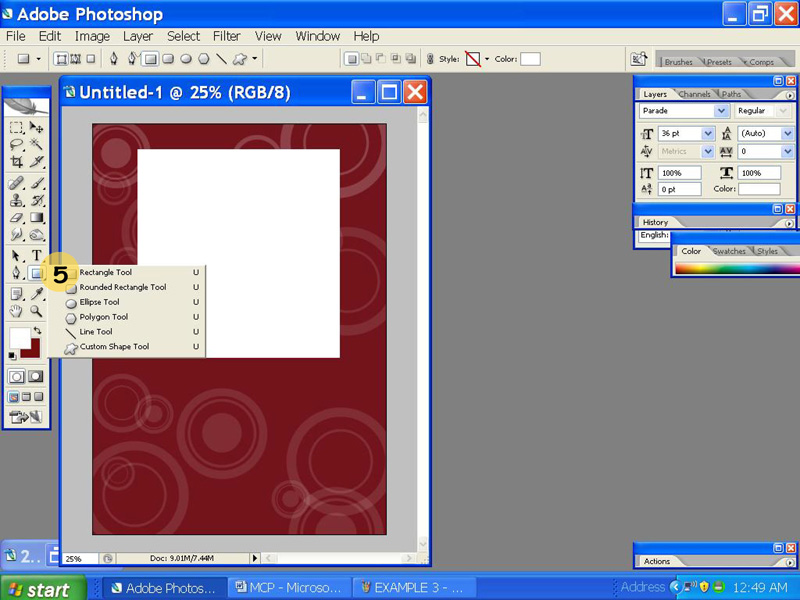
Once I have my background design done I need to add my photos and text. I added a white square using the “rectangle tool” (see yellow got 5 below). This is just my way to show a border around my photo, I am aware that there are other ways to do this, but for me this is easiest.
Now I want my photo to fit right into that white square, so I am going to choose a picture to use. Then I open my photo and I “CTRL A” and then “CTRL C”, this will then select and copy your photo (you will notice the “marching ants” along the edges of your photo). Now open a new layer, and then use the “Rectangular Marquee Tool” to outline where you want your photo to fit into. Then “CTRL V” will paste your photo into the shape. You will notice that your photo is huge and you will only see part of it, now you need to adjust the size of your photo by using “CTRL T”, now size your photo properly (notice your photo will stay within the shape you selected with the marquee tool) and then double click the photo to set it.
To finish up I will use the “Rectangle Tool” like I did above, to add a white rectangle across the bottom of my card. Then using the same steps as before, I go back to my brush pallet and choose a Christmas tree brush to add in the middle of the rectangle. Now I add text to my card, and flatten.
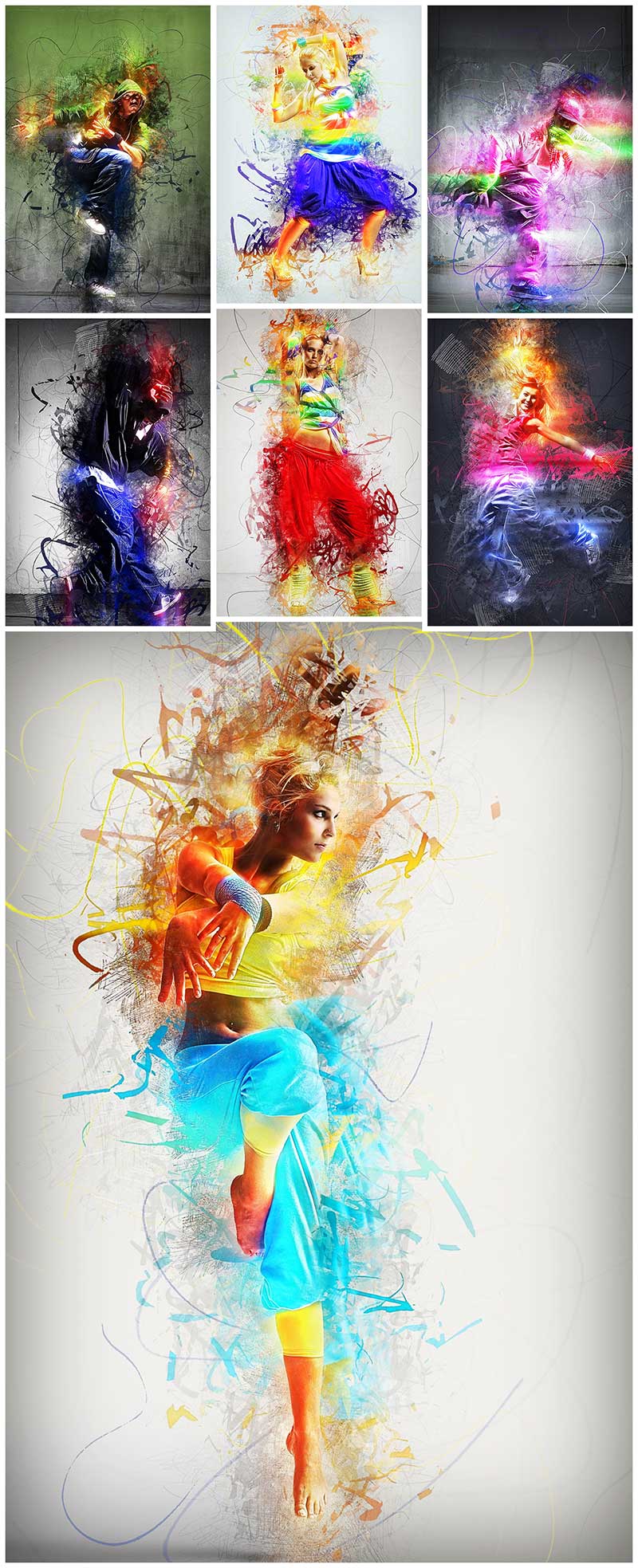
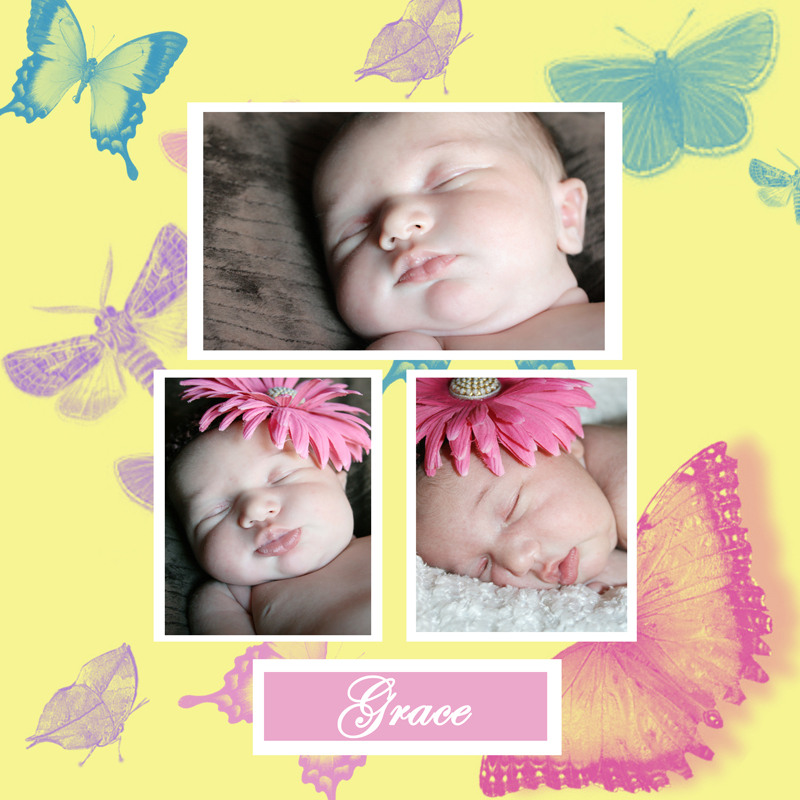
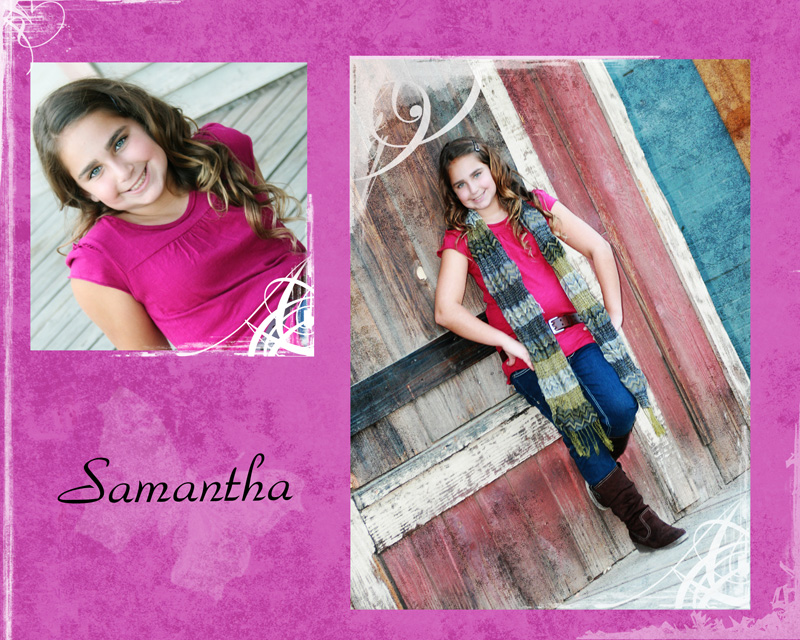
This method can be repeated to design invitations, scrapbook pages, storyboards, album layouts, business cards, senior rep cards, banners for websites and blogs. Below are some simple ideas of what you can do with your brushes.

No Comments
Leave a Comment
You must be logged in to post a comment.










Recent Posts









I love that! We only have Paint Shop Pro. I would like to get Photoshop at some point.
great article 🙂
This is great! You said that there are brushes that have been previously posted & I was wondering specifically where can I find them in the blog. Thanks for the great tips.
Thank you for this nice tutorial. One more tutorial on creating Christmas Party Invitation in Photoshop is available on:http://graphics-illustrations.com/creating-christmas-party-invitation-w-christmas-photoshop-brushes-part-oneI believe everyone will find it useful.Cheers!
Very cool 🙂
Wonderful! Thank you!
Same question as Christin… can you link to the post about Brushes? Thanks as always!
GREAT tutorial!! Thanks!
found the link for the brushes — thanks Jodi!https://mcpactions.com/blog/2009/07/13/21-amazing-free-brushes-sites/
I love this! It will be perfect for Christmas this year, and I’ve also been working on a collage that this will be a big help for. Thank you!
This is excellent!! I’m a photographer, not quite a graphic design person. I would have NEVER thought of this. Thank you!
Awesome, I made a card tonight following this tutorial. Thanks!
I made my first card using this tutorial last year. AND a client chose my card over the others I had purchased for use. Thanks for always sharing such great info. 🙂