Quick Tip: Editing Faster in Photoshop
Have you ever wished you could click a button and have Photoshop do your work for you? If you own Photoshop Actions and a Keyboard, it is almost that easy.
You can assign your actions to “F” keys on your keyboard. Most keyboards have 12 F Keys. Some have 15 or more. You can also add in Shift and Control/Command for more possibilities.
To assign an action to an F Key, just double click on the individual action (within the folder).
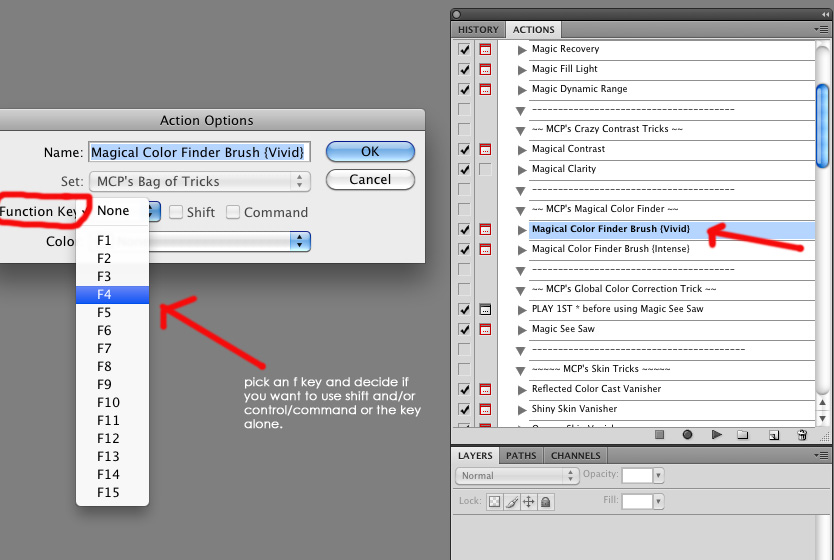
Then the dialog box shown below will pop up. You just drop down, select a key that is available, click “ok” and you are done. Once you fill your main F Keys, you can do the same thing with SHIFT + and F Key, Control/Command + and F Key and then lastly Shift + Control/Command+ an F Key.
I have my most used actions set to F Keys. It definitely speeds up my workflow.
Tags: function key, Photoshop Actions, Photoshop Actions, Photoshop Tips & Tutorials, photoshop tutorial, quick tip15 Comments
Welcome to the MCP Actions Photoshop Blog
- Learn to enhance your images with time saving Photoshop tutorials. Join us for daily blog posts with the latest photography and photoshop tips, contests, photographer interviews, and blueprints teaching how to use photoshop actions.
Featured Posts
- Editing Landscape Images Using Actions in Photoshop
- My Camera Takes Really Nice Pictures
- Over-Editing in Photoshop: How to Avoid 25 Common Editing Mistakes
- Portrait Photography Trends & Fads: The Good, The Bad, The Ugly
- Finish It Photoshop Actions Set Now Available ~ Changing the Way You Prepare and Display Images on the Web
- See All Featured Posts
Recent Posts

- Win Holiday Card Templates from Photographer Cafe
- Photoshop Alone Does Not Make a Good Photographer
- Watch Me Work: Photoshop Actions & Workflow Online Class
- Tips for After Your First Portrait Portfolio Building Session: Part 2
- 7 Tips for Your First Portrait Portfolio Building Session: Part 1
- See All Recent Posts

Polls
Photoshop Tips
- Outdoor Image Fixed in Photoshop: Better Sky ~ Better Lighting
- Senior Photography: Tips and Tricks on Posing, Locations and More
- Using Photoshop Actions to Enhance a Blue Sky and a Rainbow
- Photoshop Actions: Glossary of Offerings by MCP Actions
- Photoshop Actions: A Guide to Choosing the Best Actions
- See All Photoshop Tips
Video Tutorials
- Photoshop Video Tutorial: Watch Me Work {Color Pop, Eyes, Skin}
- The Secret to Using Photoshop on an iPad and iPhone
- Installing Photoshop Actions in Elements: Video Tutorials
- What Are Photoshop Actions And How They Can Help Or Hurt Photography
- Free Photoshop Action + Video: To Add Texture to Photos in Photoshop
- See All Video Tutorials Posts

Categories
- Activities
- Announcements
- Assignments
- Blueprints
- Business Tips
- Cancer Awareness
- Contests
- Discounts, Deals & Coupons
- FAQs
- Featured Post
- Free Actions
- Free Photoshop Stuff
- Guest Bloggers
- Interviews
- MCP Collaboration
- MCP Thoughts
- Photo Sharing & Inspiration
- Photography & Photoshop News
- Photography Tips
- Photoshop Actions
- Photoshop Tips & Tutorials
- Polls
- Social Networking
- Video Tutorials
- Workshops


9:44 amDecember 29th, 2009
[...] 1 votes vote Quick Tip: Editing Faster in Photoshop Have you ever wished you could click a button and have Photoshop do your work for you? If [...]
9:48 amDecember 29th, 2009
Jodi – you always have the best tips! Thanks for all you do – Blessings in 2010!!!
10:25 amDecember 29th, 2009
Gotta love shortcuts! I had no idea this was an option. THanks.
10:26 amDecember 29th, 2009
Thank you so much for sharing this tip Jodi. Fantastic!
~Angie
co-founder of http://www.iheartfaces.com
1:08 pmDecember 29th, 2009
Thanks! I always forget to use my short cuts!
I went in and set them all up again and plan on using them!
1:21 pmDecember 29th, 2009
I cannot wait to get to use this! Thanks for sharing this helpful hint.
1:43 pmDecember 29th, 2009
I love this option! But with my Mac its somehow not working because of the MacBooks preset functions… For example, I hit F12 and the dashboard shows up. Any suggestions?
3:10 pmDecember 29th, 2009
So simple yet so helpful! Thanks!
6:42 pmDecember 29th, 2009
oh thank u, i needed this!!!
7:19 pmDecember 29th, 2009
Um, I will use this ALWAYS. Thanks for this tip!!
7:52 pmDecember 29th, 2009
BIG help! Thanks!!!!!!!
6:32 amDecember 30th, 2009
Thanks for sharing
10:49 amDecember 30th, 2009
I was just thinking of assigning f-keys today. Thanks for the help Jodi!
5:35 pmDecember 31st, 2009
Ohh Thank you!! This made my day!
11:06 pmJanuary 1st, 2010
Thanks so much for sharing all you little tips and secrets. They are so appreciated. I was able to assign “flatten image” to a key, but when I try to assign one of my actions to an “f” key it won’t bring up the actions options box. I must be doing something very simple wrong, because the other one was so simple. When I double click on the action is just highlights the whole name as if I were going to change the name. I double click on the arrow, the name, right click, left click and no option box will appear. I am clicking on the action it’s self within the box. I know it must be something simple I am not doing, if you have a minute could you maybe tell me what I am doing wrong? Thanks so much again for all your tips!