
Featured Products
-
Sale!

-
Sale!

-
Sale!

-
Sale!

-
Sale!

-
Sale!

-
Sale!

-
Sale!


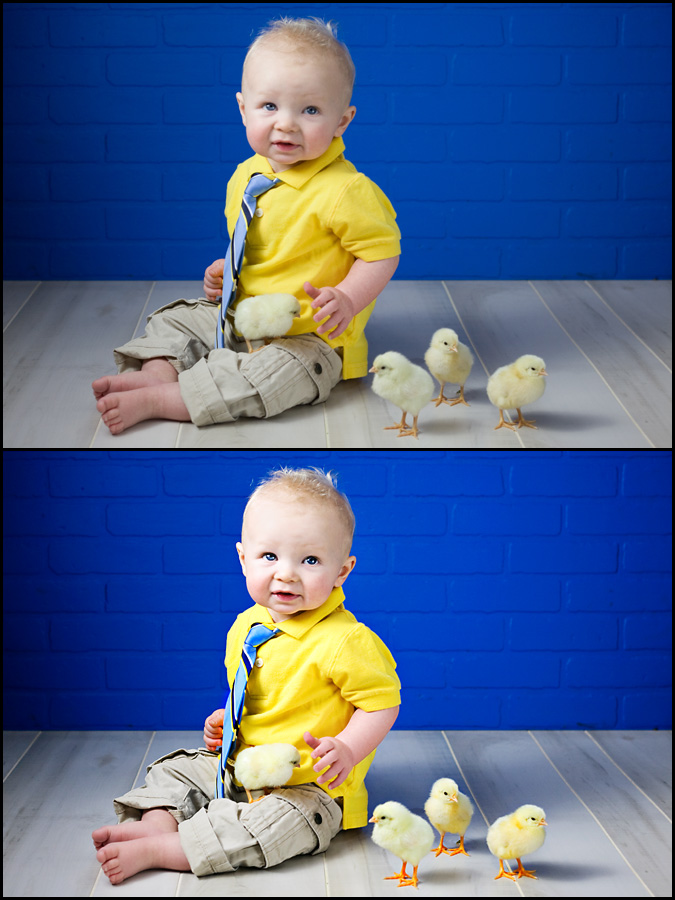
Getting great color starts with great exposure and lighting as well as the right subject and background. Make sure to set your white balance in camera or using RAW, for the most accurate colors. This photo by Renee Trichio (Twice as Nice Photography) started out with vibrant color. Renee’s concern when she came to me for help was “how to I enhance the image without going overboard.” There is a fine line on what editing is good or too much. And the important thing to remember is that while there are some rules (such as blowing a color channel and such), for the most part, it is subjective. Photography is art.
For this image, my recommendation was to add light contrast, a touch of color pop all over, and to selectively add color to certain parts of the photo.
Here were the steps we took:
- Started by adding midtone contrast (similar to defogging) by using the Quickie Collection – Crackle Photoshop action
- Next I wanted to add some punch and contrast using this light color pop Photoshop action. I used the Quickie Collection – Color Flair action
- As I mentioned, the color in the background looked great already. The chicks were a little dull, especially their webbed feet. So I used Fingerpaint (Medium) to apply selective color pop to just those areas.
- I used the Eye Doctor, eye enhancing Photoshop action to sharpen and enhance the catchlights in the eyes.
- And then I lightly smoothed the skin using Magic Skin – Magic Powder skin smoothing Photoshop action at the default opacity. Masked off spill on hair.
- I wanted to add a light vignette, but wanted it subtle. I used the Free Photoshop action – Touch of Light/Touch of Darkness. I used the Light layer on his face with a 30% opacity brush and the dark layer on the edges of the image to add a natural burnt edge look.

No Comments
Leave a Comment
You must be logged in to post a comment.











Recent Posts









I love hearing your step-by-step progress! I wish I owned more of the actions that you are mentioning, because it is just amazing how easy they are and what a great job they do!! Keep it up! 🙂
So i’ve only just found you, and having watched a few tutorials i’m already seeing that i’m going to be hooked on actions. I take a good ammeter photo but not a great photo so i can see that actions are going to be that step up for me.thanks for sharing seeya hugya *G*
Great edit ~ he’s adorable!
Hello, i am new to photography – have only been taking pictures for people by request for about 1 year. I am so grateful there is a blog like this to come to in time of need (quite often). Thank you for taking the time to do this. Means more than you will ever know. There are photographers who are threatened by the curiosity of others in re: to the “how do you do…?” questions – but from your blog i have captured 2 main things.. you know what youre doing, and you’re not afraid to show others…because it is a passion 🙂 thank youCrystal
Hi, Jodi. I’m curious how to get these vivid colors to translate to prints. I’ve been having trouble with printing bright colors and have been told it’s because they are out of gamut. But when I bring the saturation down, then the image is dull. I realize that printers have limits as far as color reproduction, but I would love to read how you get around that when making prints for your clients.