
Featured Products
-
Sale!

-
Sale!

-
Sale!

-
Sale!

-
Sale!

-
Sale!

-
Sale!

-
Sale!


The more you edit in Lightroom, the more time you save. This sharpening tip will give you one more way to maximize your editing time.
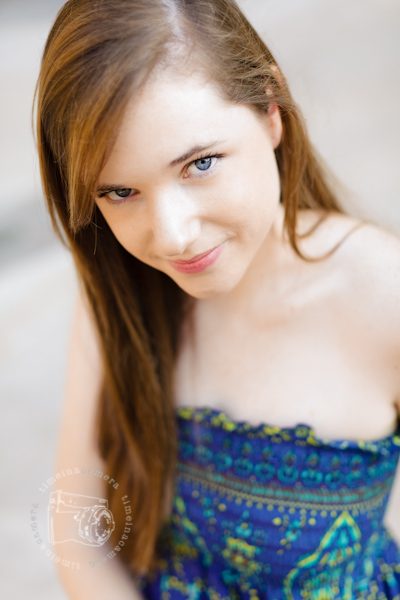
When sharpening a photo in Photoshop, using a layer mask will usually give you the best result. Some areas we want to be sharp, like eyes and jewelry. Other areas can stay nicely soft such as fine lines and wrinkles.
In Lightroom, it’s best to sharpen using the Detail Panel – it gives us the most control over amount and radius. The adjustment brush is good for spot sharpening, but we can’t change its radius, and it’s hard to constrain the adjustment brush to very small areas.
Unfortunately, Sharpening with the Detail panel is global. That is, it applies the sharpening amount to your entire image. In the comparison below, you can see that the middle image has areas that are oversharpened. The white of the eye is getting that dry crispy look, the fine lines on her skin are more visible and, if you have a sharp eye, you can see sharpening artifacts in her eyebrows and between the lashes.
Lightroom gave us the masking slider to help with this. When it’s set to 0, sharpening is applied to the entire photo evenly – as in the middle image above. When you slide it to 100, sharpening is restricted to areas near the strongest edges. This is a good start, except that it’s hard for us to know where to place that slider between 0 and 100.
That’s where this handy trick comes in. Hold down your alt or option key as you adjust the masking slider. Your image will turn into a good old-fashioned layer mask. Remember that black conceals and white reveals?
So, in the screen shot above, I moved the slider to 79, which was where the mask captured only the areas I wanted to sharpen. You can see that the edit is being applied just to eyelashes, the hair in the eyebrow, the iris and the catchlights. Say goodbye to crispy eyes, artifacts in the eyebrows, and sharpened pores and lines.
The Detail Panel below the masking applied to the image as a whole. It’s perfect – only parts of the hair, eyes and dress are sharp.
*** When using MCP Quick Clicks sharpening presets, make sure to fine tune your image using this same masking slide for the best results!
I couldn’t have created such a perfect mask in Photoshop. Could you?

No Comments
Leave a Comment
You must be logged in to post a comment.














Recent Posts









I have never used lightroom before. Without masks is there a way to dodge and burn images?
Yes. There is an “adjustment” brush that does dodge and burn, along with teeth whitening, softening skin, clarity on eyes, etc. That said I am so in love with the Amazing Faces action set from MCP that its hard not to export it back into PS to use those! I’ve used it for almost a month now, incredible program.
In my photography I can’t imagine using only one of these two products. I’ve got a very distinct work flow that begins in Lightroom with basic raw processing and ends in Photoshop for small touch ups and a few stylistic actions or filters. To me, they are two entirely different animals, each with their own strength. I couldn’t live without the control photoshop offers over my photos, but I certainly can’t imagine doing my basic processing without the speed and ease of Lightroom.
I couldn’t live without both!
you are comparing apples and oranges, though I must say, what I would use lightroom for, I can do in ACR.
I definitely use both programs. But I find these days that I do 90% of my post processing in Lightroom. Once I learned how to fully use the toning and color tools in Lightroom (Split Toning, Tone Curse, HSL), I can usually create the mood I want in a finished images without going to Photoshop. I now mostly use Photoshop for fixing problems (removing distractions, liquifying, head swapping).
I use both. I need both. I however do not think LR can be used exclusively for editing. I do not think it can produce quality professional images like PS can. LR is for basic adjustments, cropping, renaming in bulk, etc… PS is where the good stuff happens.