
Featured Products
-
Sale!

-
Sale!

-
Sale!

-
Sale!

-
Sale!

-
Sale!

-
Sale!

-
Sale!


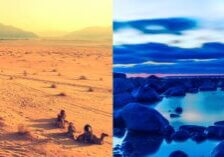
Photoshop actions can both fix and enhance photos.
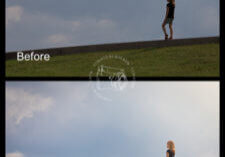
The more dramatic examples are “saves” where exposure is off and actions come to the rescue. While photoshop actions may be extremely helpful in those accidental exposure blunders or in helping with color problems, you will get far better images when you start out with a photo that is technically sound. Here’s a before and after step-by-step Blueprint submitted by the talented Brittany Lealand. She takes a really beautiful picture and makes it pop even more with a few quick Photoshop actions.
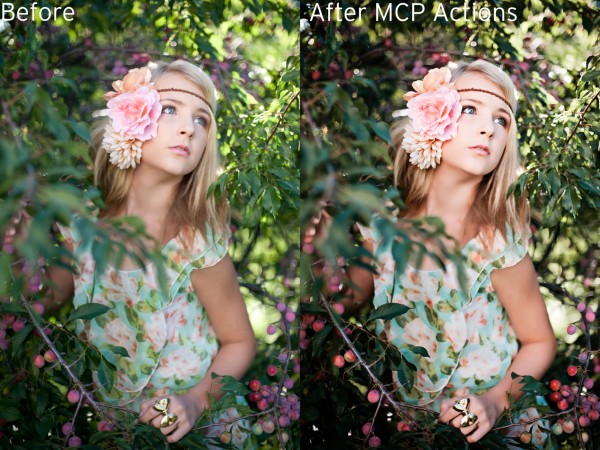
Here are the Photoshop actions and steps she used for her edit:
1. I started with the Magic Skin action – masked off hair line and hair lowered to 56% opacity.2. Next, I used the Eye Doctor action to add contrast and detail to her eyes.3. To add an overall crispness to the image, I used Magical Clarity from Bag of Tricks – 11% opacity.4. To finish the photo and add a peachy tone, I used Peachy from MCP Fusion at the default opacity, lowered the opacity of one click color to 60% and turn off brighten layer.
After that I just flattened and saved it. – Thanks, Brittany


No Comments
Leave a Comment
You must be logged in to post a comment.












Recent Posts









Great tutorial, your tutorial is very much helpful for me. Thanks a lot for sharing these awesome tutorial with us !!