
Free Editing Tools
Enjoy a FREE Snowflake Bokeh Brush for Photoshop
Enjoy this FUN Free Snowflake Bokeh Brush – a little Christmas / Holiday Gift for you. We wish you a blessed Christmas, New Years, and Holiday Season. Enjoy time with your family and make sure to document the memories, and also to be a part of them. We have a little goodie for you at…
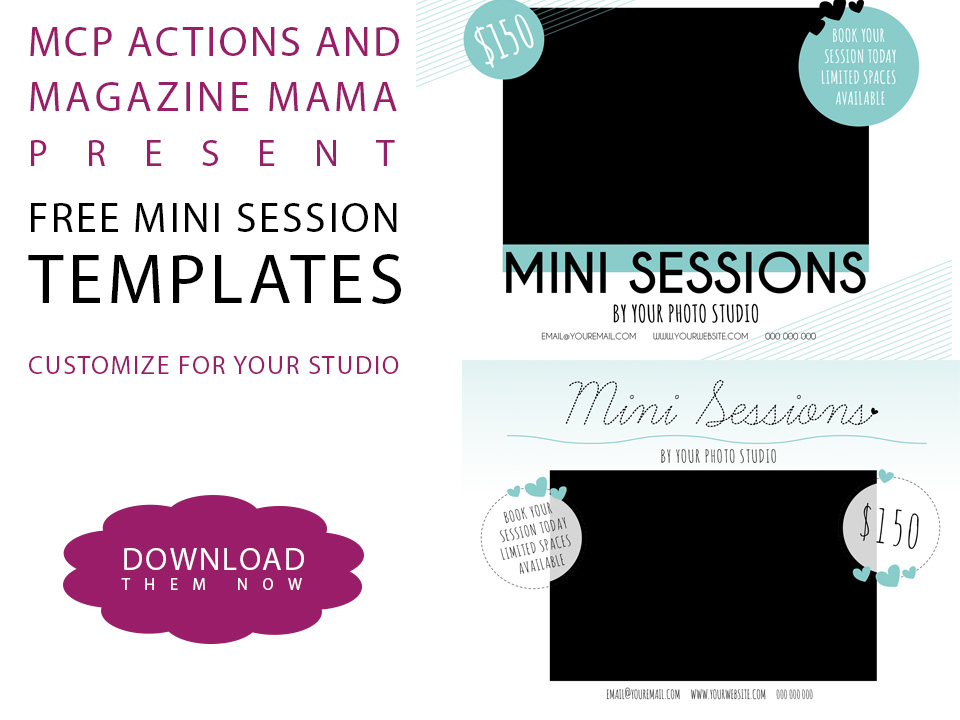
Download a FREE Mini Session Template for Photoshop
Come download this free goodie to help you prepare for your next mini sessions.
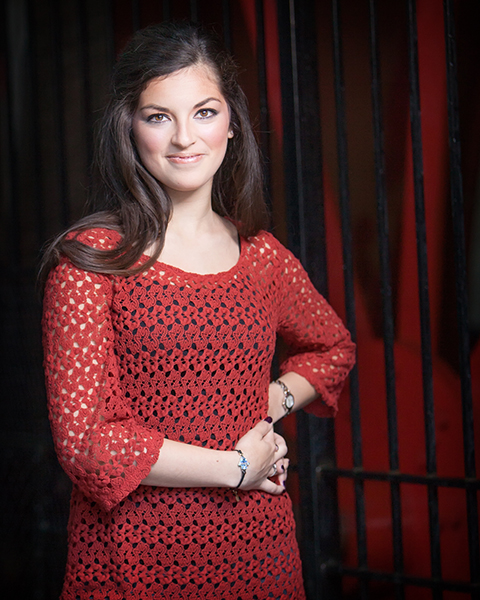
Easy Ways to Add Pizzazz To Blank Walls in Photoshop
You can spice up your boring photography backdrops digitally! Use MCP actions to create any look you can imagine, follow this easy five step DIY.

One Inspiring Story of a Photographer Documenting Her Mom’s Cancer Treatment
When crisis strikes, take action with your photos. This photographer documented her mom’s struggles throughout her cancer treatment.
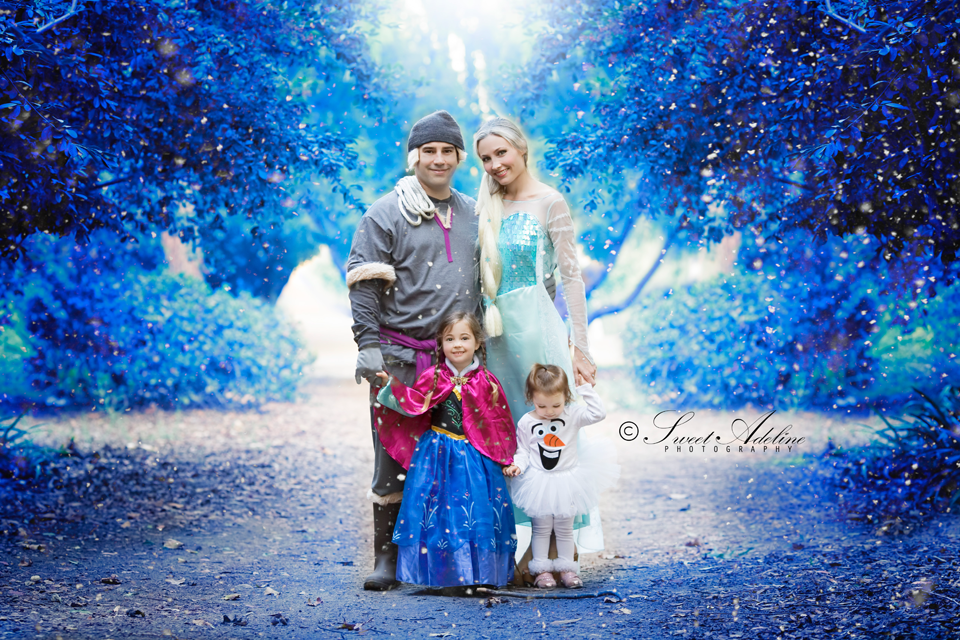
How to Create a Disney “Frozen” Fantasy Photo
If you want to recreate the Disney movie Frozen, in your photos, here’s a quick tutorial to help.
Free Photoshop Action — to Support Cancer Awareness
Download this free Photoshop action now – to help enhance your images and bring awareness to cancer.
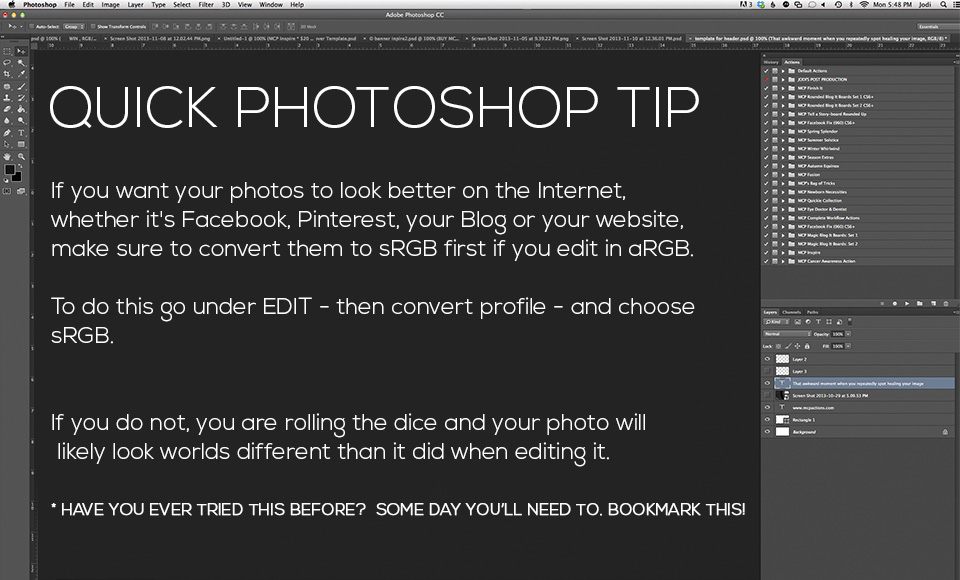
Instantly Make Your Photos Look Better on the Web
Have you ever wondered why your photos look terrible online when they looked amazing in Photoshop? The way your photos look often relies heavily on the specific website or social media platform where you upload the images. Compression saves space and many places on the web, especially formats like Facebook, compress heavily. We have FREE…
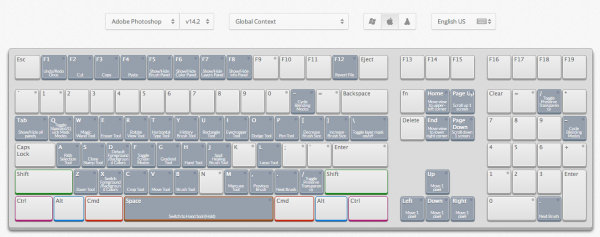
Save Time With This Free Keyboard Shortcut App
Shortcut keys save seasoned photo editors huge amounts of time. When you memorize combinations of keystrokes and no longer have to search for them, you’ll cut editing time dramatically. We’ve made lists of our favorite keyboard shortcuts for Photoshop and Elements in the past, and these free printable lists really help. But we just came…
Merry Christmas: Enjoy a FREE Snowflake Bokeh Brush for Photoshop
Enjoy this FUN Free Snowflake Bokeh Brush – a little Christmas Gift for you. We wish you a blessed Christmas. Enjoy time with your family and make sure to document the memories, and also to be a part of them. We have a little goodie for you at the bottom of this post – a…
Holiday Gift Ideas for Photographers + A Few Free Goodies
Are you stumped when it comes to buying a gift for the photographer in your life? Whether you want to buy a gift as a token of thanks for the photographer who took your family photos or you want a gift for someone special in your life who loves taking pictures, we have you covered.…
How to Photograph and Edit a Snowflake + A Free Sparkle Brush
As the first snowflakes touched down here in Ontario, Canada I snuck outside to snap a few quick shots on my back deck. The snowflakes were big and fluffy and moving very slow, and didn’t last more than a minute or so once they landed. I have been playing around with macro free lensing and…
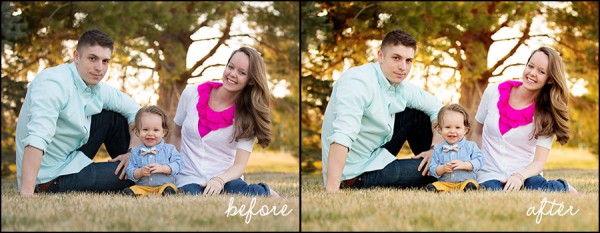
Using Photoshop Actions to Bring Out Beautiful Spring Color
Using a variety of Photoshop actions and techniques can really draw out color in a landscape and enhance the spring colors.
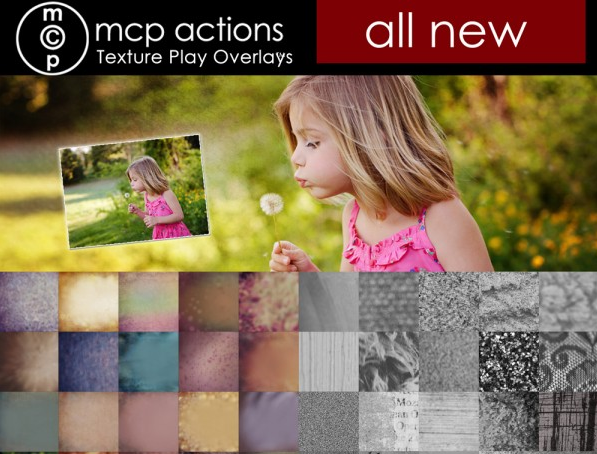
NOW AVAILABLE: MCP Texture Play Overlays PLUS a Free Gift!
75 amazing texture overlays enhance your images in Photoshop and Elements.
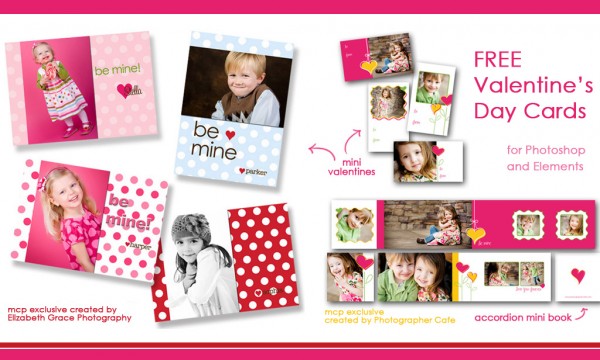
FREE Valentines Day Mini Cards and Accordion Book Templates
Looking for cute, fun and free mini Valentine’s Day mini cards or accordion books? Look no further – these are templates are adorable and the price is right!
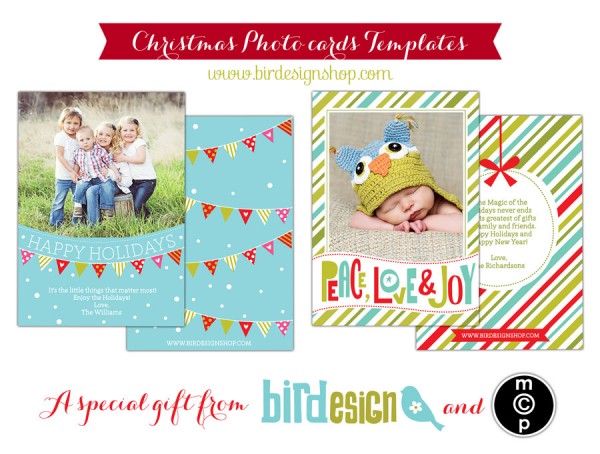
Free Holiday Card Template for Photographers: Download Now
Come download these free exclusive Christmas card templates made by Bird Designs for MCP readers. These holiday card templates will work in both Photoshop and Elements.
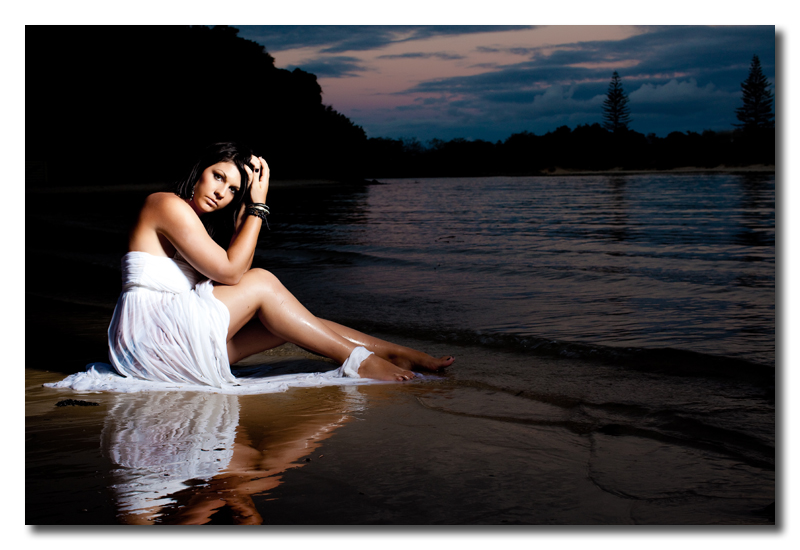
Creating a Retro 50s Image in Photoshop
Step-by-Step Guide to Creating a Fun Retro 50’s Image Using Your Photos and Photoshop Step 1: The first step is to open up a new Photoshop document and drag the photo on to a new layer. Step 2: Next, erase the background of the original photo using the eraser tool, or selecting the subject using…
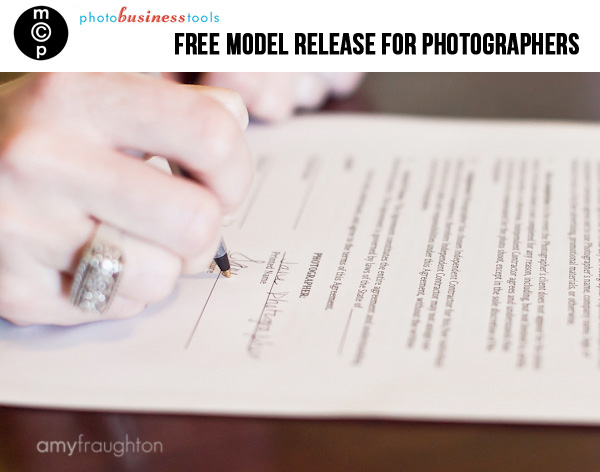
Free Model Release Form for Photographers
You should always have a model release handy so you have permission to use people’s photos on your site. Download this free one now.

Free Patriotic Photoshop Template * Perfect for Memorial Day, 4th of July
*** FLAG IN A FLASH *** Enjoy our Free Patriotic Photoshop Template for Memorial Day, Independence Day/4th of July, Veteran’s Day and beyond. This is a very special freebie for Photoshop and Elements called “Flag in a Flash.” It was first introduced four years ago as a Photoshop action. We are bringing it back this…
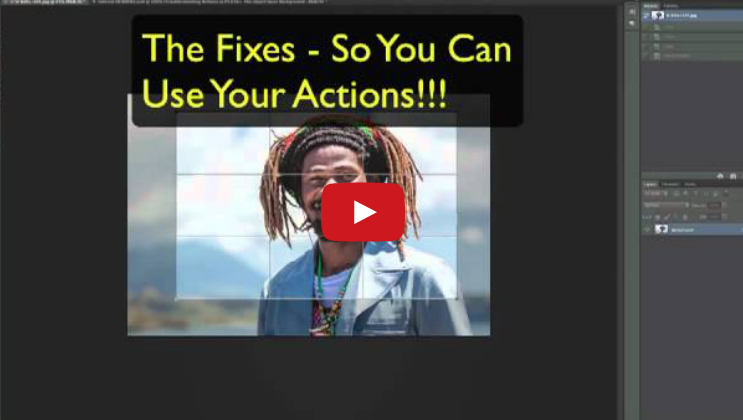
Troubleshooting Photoshop Actions in CS6: Background Not Available
Fix actions that appear to break when using Photoshop CS6. Free Photoshop action included here.

Recent Posts








