
MCP Actions™ Blog: Photography, Photo Editing & Photography Business Advice
The MCP Actions™ Blog is full of advice from experienced photographers written to help you improve your camera skills, post-processing and photography skill-sets. Enjoy editing tutorials, photography tips, business advice, and professional spotlights.

The Beauty of the Golden Hour and How It Can Transform Your Work
The golden hour occurs twice a day: after the sun rises and shortly before it sets. During this time, the light is warm and almost magical, creating a welcoming atmosphere for photographers of all kinds. This is the perfect time of day for artists to completely focus on subjects, ideas, and compositions without worrying about…
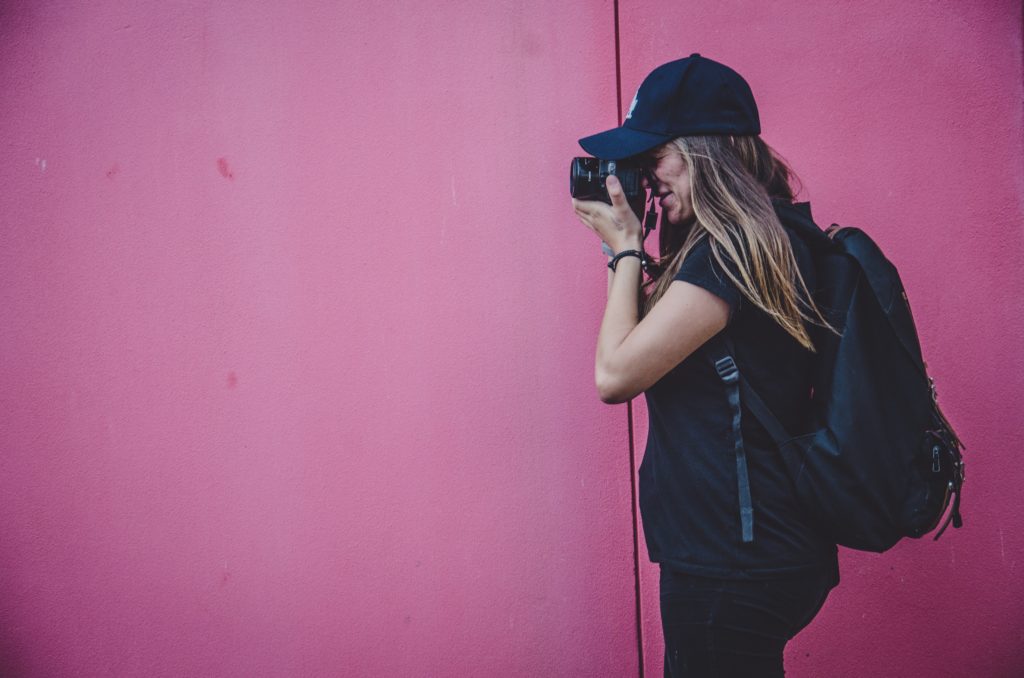
How to Quickly Edit Photos in Lightroom and Get More Work Done
Editing an abundance of photos in Lightroom can feel like a boring chore at times, especially if you have hundreds of photos that look relatively similar. Tasks like this tend to be monotonous and time-consuming, making you wish you were out taking photos instead of sitting in front of your laptop. Most editing programs, fortunately,…

How to Get Featured on a Book Cover
Books are a comfort for many, yet the publishing side of literature is often seen as an intimidating world of contracts, offices, and deadlines. It seems that only the very best photographers can get the opportunity to successfully contribute their work and get published. Because of this, many book-loving photographers refuse to contribute their work…

How to Take Striking Self-Portraits
When have you looked at a professional portrait of someone you’ve never seen and knew, at once, if the model was the photographer or not? If I come across an unfamiliar photographer, I can rarely tell whether the model is the creator themselves or not. This is wonderful because it combines both genres in a…

Why You Should Invest in Canon’s Affordable 50mm 1.8 Lens
Not being able to afford expensive lenses might be very discouraging for you. Even worse, it could be preventing you from approaching clients for fear of looking silly with your limited equipment. The world of expensive camera gear might seem like a sweet, impossible dream. But is having a ton of equipment really the only…
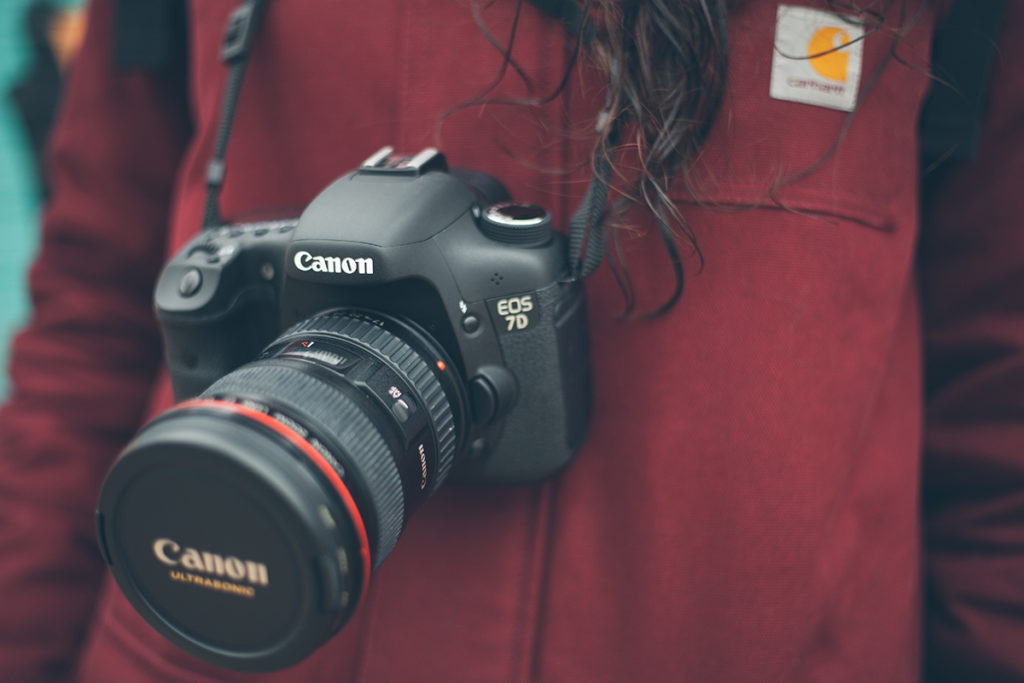
5 Ways to Earn Extra Money as a Photographer
Being a photographer can be financially challenging sometimes. There’s nothing wrong with facing issues that constantly plague the world of creativity. Wanting to be economically stable is what will help you get through times of drought. The best thing you can do during this phase is experiment and persist whenever you can. Experimentation can be…

How to Have Fun and Successful Family Shoots
The key to having successful family photoshoots is comfortability, creativity, and a plethora of patience. This might sound like a long list of intimidating demands, but it’s far from problematic if you look at it from the understanding photographers’ point of view. Family shoots can be exceedingly fun and uplifting if both you and your…

What to Do When You’re out of Inspiration
We all go through phases of creative drought from time to time. Though they’re very natural phenomenons, especially in the world of artists, they can be very discouraging. They sneakily tell us that we’ll never find valuable inspiration again and that our best photographs have already been taken. This, of course, is a lie not…
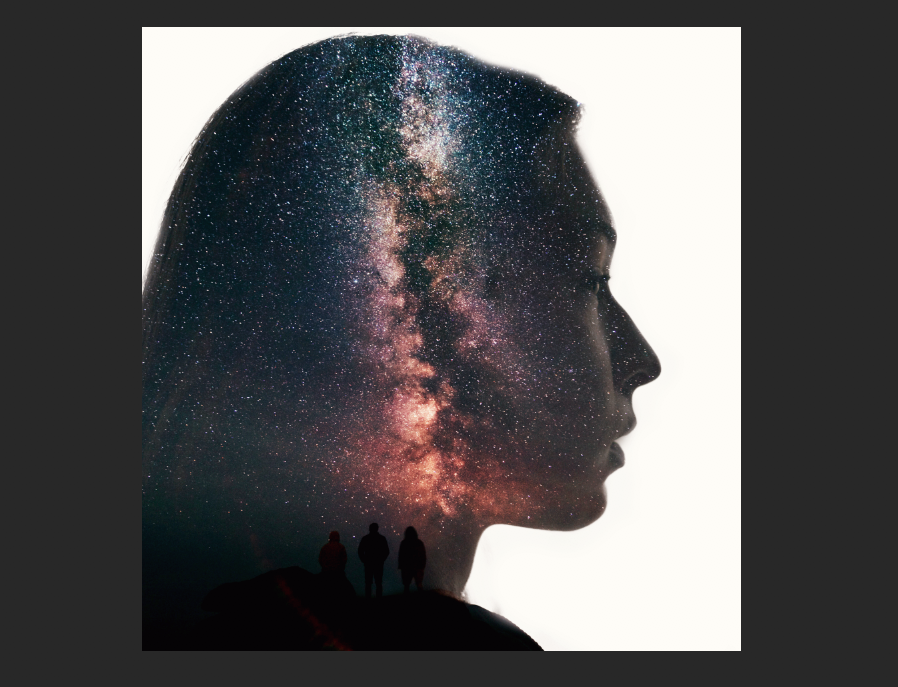
How to Create Compelling Double Exposures and Impress Clients
It’s a given that creative photographs attract an abundance of people. Conceptual images inspire us to think more deeply about a subject and refresh our creativity. They teach us to look at seemingly insignificant things from a fresh perspective. All in all, they’re fulfilling works of art that anyone can create. Double exposures are two…

5 Shots a beginner photographer absolutely CAN take
When I first started considering photography and the different sort of photos that I wanted to take, I was a little put out. It seemed like every article I read did nothing but tell me that my kit lens would be terrible and need an immediate upgrade, or that I would need to travel to…

How to Have Comfortable Client Shoots
We can all agree that comfortable client shoots are a dream. There’s nothing better than having an agreeable client who feels confident in your presence and smoothly collaborates with you. Though dreaming about scenarios of this sort is pleasant, there’s a way to make them come true. Every shoot, regardless of how stressful or complicated…

How to Market Yourself on Social Media
The Internet can be an intimidating place. There are millions of photographers out there, millions of successful artists with an abundance of great clients. Having this in mind may discourage you from pursuing your dreams. This frightened mindset, however, is wrong. It’s very possible to succeed in a busy online world filled with endless news…
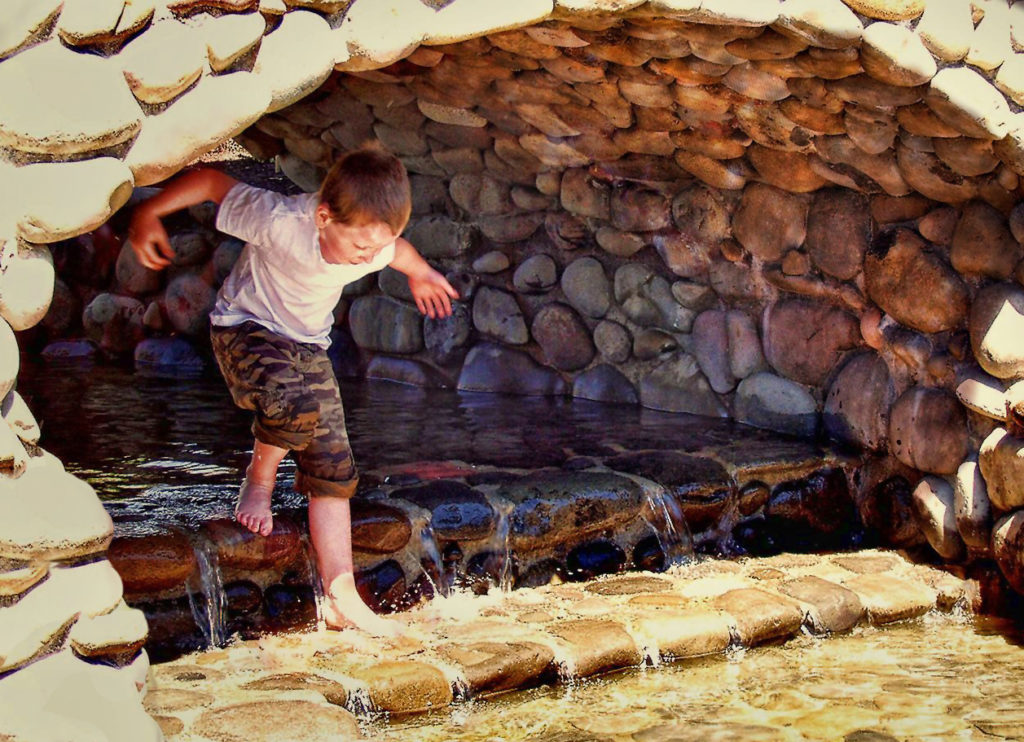
Photoshop Texture Overlays: More Useful than you may Know
Most photographers probably don’t think of Photoshop texture overlays as photo editing tools. They’re more for special effects and creating digital art, right? It’s true that those are common applications for them. Textures can be used in more subtle ways to enhance your photos, though. Let’s look at some examples of using them in…

Do More Studio Tools Mean Photographers Don’t Have to Be as Skilled?
There’s always been a happy medium surrounding photographs. Taking a picture is easy and anybody can take a snap. Creating art, however, is a whole different ball game. Historically, at least, there hasn’t been much doubt about that. The divide between amateur enthusiast and professional photographer has generally been clear in the end result. In…
MCP Actions Sponsored GuruShots Shooting Clouds Photo Challenge Winners
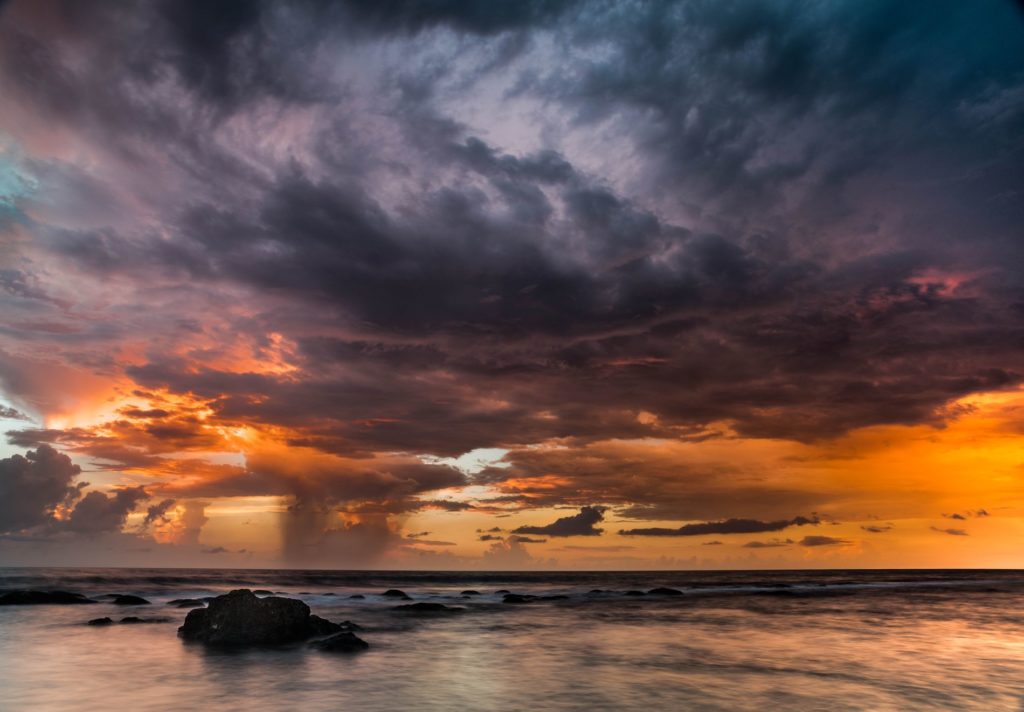
We’re thrilled to announce the winners of the MCP Actions sponsored GuruShots Shooting Clouds Photo Challenge, Mark Giacobba and Carmello! As you know, clouds can have a tremendous impact on the outcome of a shot. Whether they are smoky and thick or light and wispy, pulling out your camera on a cloudy day can produce…

MCP Actions Sponsored GuruShots Motherhood Photo Challenge Winners
We’re thrilled to announce the winners of the MCP Actions sponsored GuruShots Motherhood Photo Challenge, Bart Boots and Csaba Daróczi! As we all know, Motherhood can be demanding, lonely, and difficult, but the love you get in return is an unmeasurable, fulfilling reward that makes it all worthwhile. In the Motherhood Photo Challenge, we encouraged…

12 Awesome Photography Genres for Both the Professional and the Hobbyist
With the click of a shutter, we’re able to capture the world before us. Photography allows us to preserve the history of any moment in time. This is why photography is so beloved by many. And with the advent of smartphone technology, almost anyone can be a photographer. There are many forms of photography—many with…
5 Best Lenses for Sony A6300
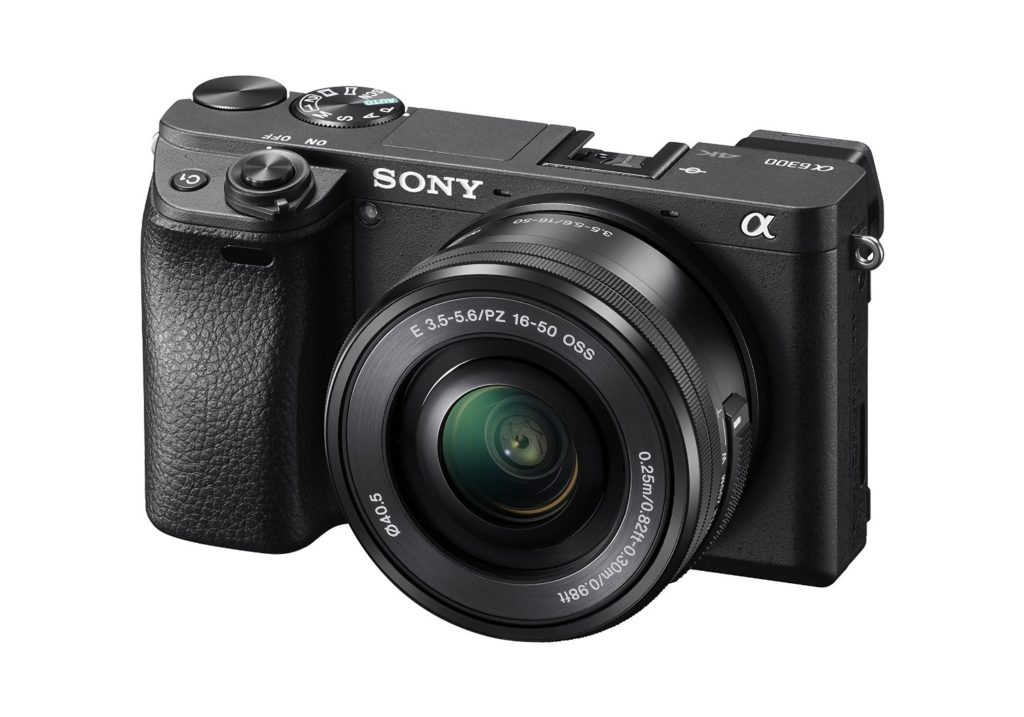
Which lenses are the top picks for Sony’s highly rated upgrade – A6300? Sony’s recent addition to their camera range, the A6300, marked a significant improvement on its predecessor, the A6000. With a sturdier construction, improved autofocus capabilities and a vastly enhanced 4K video capacity the A6300 has earned some great reviews. One downside to…
Nikon D3400 Review
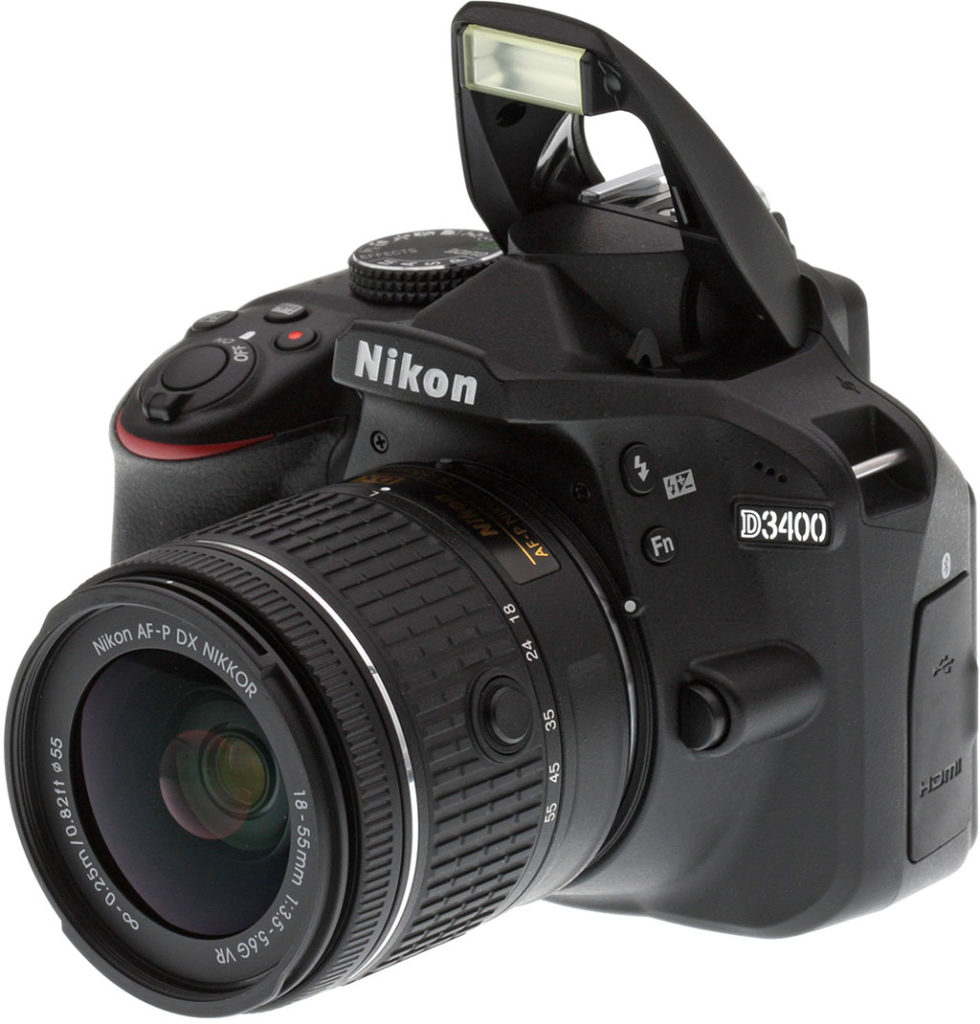
Among the DSLRs for beginners into the field of digital photography Nikon released the D3400 which has a lot of great features such as a compact design, a long battery life and good AF performance but the thing for which it truly stands out is the ease of use. The models for people starting into…
Canon EOS Rebel T7i / 800D Review
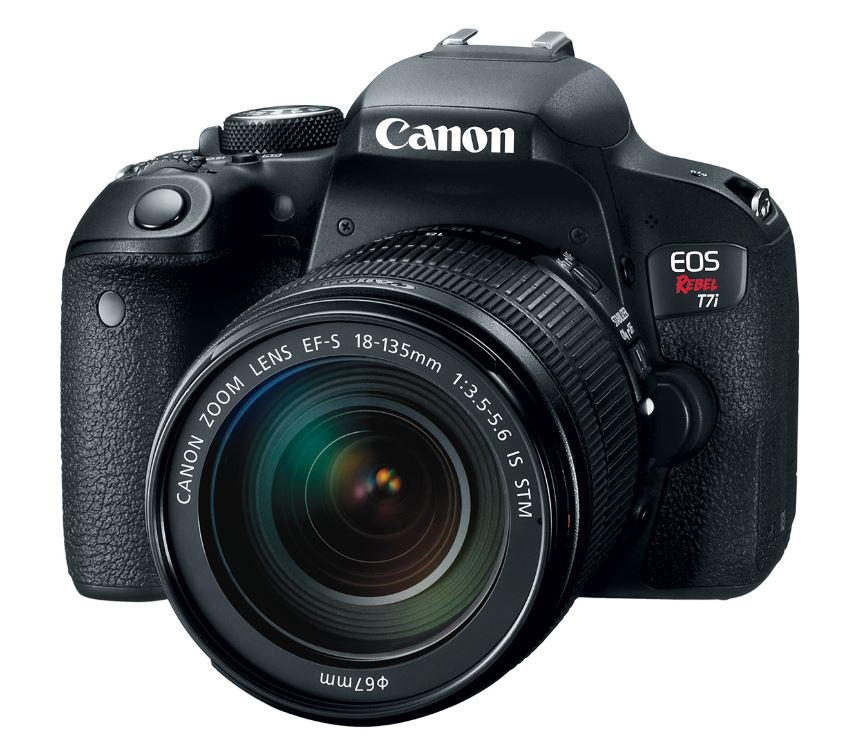
The Canon EOS Rebel T7i, or 800D as it is known outside of the US, was released as an entry-level DSLR which has a polished design and a lot of features which make it ideal for someone who wants to have an all-around camera or someone who is beginning to learn about photography. General Features…
Recent Posts








